

Your first course
This page takes you from an empty course list to a finished file for Moodle. It takes about ten minutes. You will:
- create a course from a template,
- add a slide with text and a button,
- make the button work so it goes to the next slide,
- test everything in the preview,
- publish the course and keep a backup.
Create the course in 3 steps
Open My courses
Open the Studio and click My courses at the top. This is your workbench: every course stored in this browser appears here.
Click New course
Click New course at the top right. A window opens with three choices.
Fill it in and click Create course
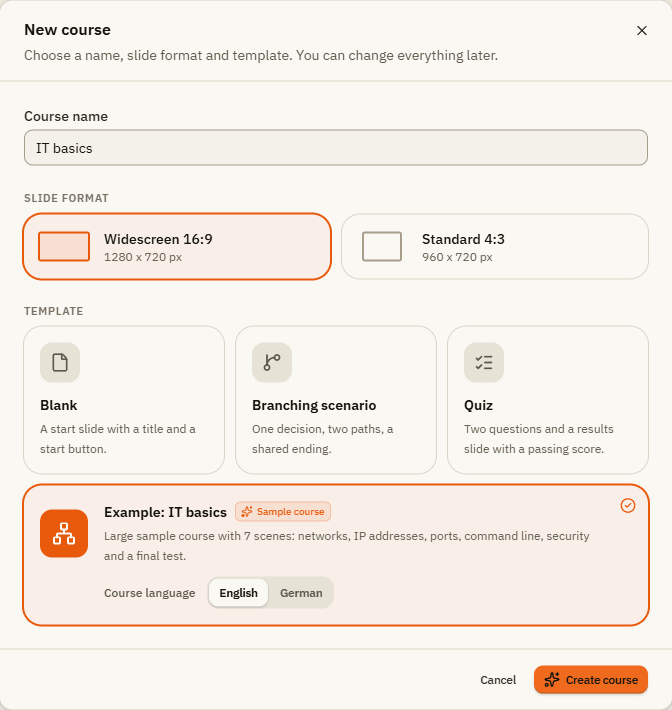
Type a Course name, choose a Slide format and a Template, then click Create course. The editor opens with the first slide. From now on everything is saved automatically.
| Element | What it does |
|---|---|
| Course name | The name in your course list, in the player and later in Moodle. You can change it any time by clicking the title in the editor. |
| Slide format | Widescreen 16:9 (1280 x 720 px, fits most screens) or Standard 4:3 (960 x 720 px). You can change it later under Design, Size. |
| Template | Blank: one start slide with a title and a start button. Branching scenario: one decision, two paths, a shared ending. Quiz: two questions and a results slide with a passing score. |
| Example: IT basics | A large sample course with 7 chapters, many interactions and a final test. Under Course language you choose English or German. |
Add a slide with a button
Insert a new slide
Click New slide on the Home tab. The new slide appears after the current one. The small arrow on Layout next to it gives you a slide that is already arranged, for example Title and content.
Write the text
Double-click a text box on the slide and type. A small toolbar appears for bold, lists, links and more. Click next to the slide when you are done.
Add a button
Open the Insert tab and click Button. Drag the button to where you want it. Double-click it to change its label, for example to "Next".
Make it do something
Keep the button selected. On the right, open the Triggers tab (the lightning icon) and click New trigger. In the window, pick the template Go to the next slide under Quick start. Everything is filled in for you: when learners click the button, the course goes to the next slide.
Test it
Click Preview at the top right. The preview plays your course exactly as learners will see it. With the small arrow next to Preview you choose what to play:
| Choice | What it plays |
|---|---|
| This slide | Only the slide you have open. Quick for checking a single slide. |
| This scene | The current chapter. |
| Whole project | The whole course from the start slide. |
Publish it
Open Publish
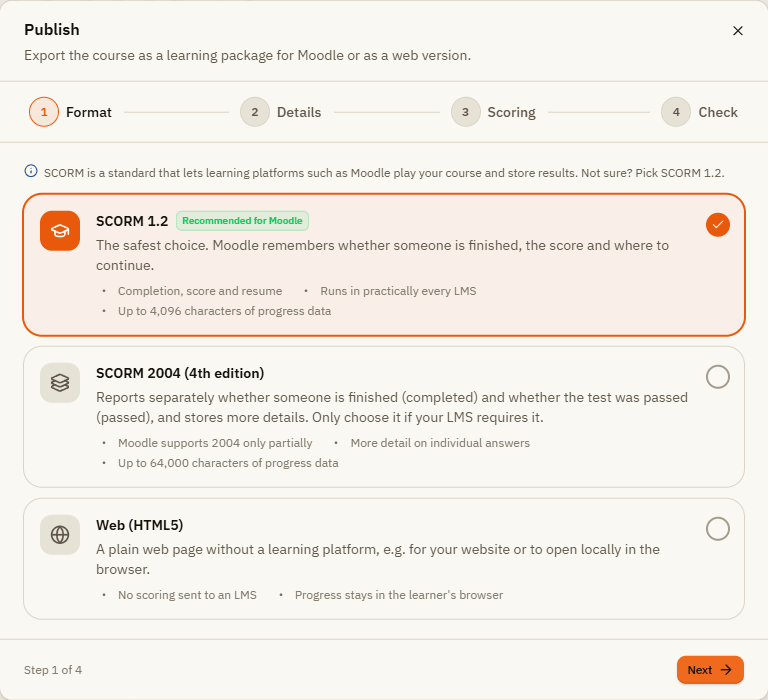
Click Publish at the top right. The window has four steps: Format, Details, Scoring and Check.
Choose SCORM 1.2
Pick SCORM 1.2. It is marked Recommended for Moodle and works in practically every learning platform. Click Next.
Check the details
Under Details you see the title and version of the package. You usually don't need to change anything.
Decide when the course counts as finished
Under Scoring, choose when the course is complete: Slides viewed (good for courses without a test), Results slide (good for courses with a quiz) or By trigger (you decide the moment yourself).
Download the file
Read the notes in the Check step and click Publish. A ZIP file is downloaded. Upload it to Moodle unchanged, without unzipping it.
Back up your course
Your course exists only in this browser. Back it up now:
- On My courses, open the Workbench menu and choose Back up everything (.olsw). This saves all courses in one file.
- Or right-click a single course and choose Export, As .olsx archive.
More in Versions and backup.
If something doesn't work
| Problem | What to do |
|---|---|
| The button does nothing in the preview | Select the button and look at the Triggers tab. Is there a trigger with User clicks and your button? Check that a next slide exists. |
| Objects on the slide look pale in the editor | They are not visible yet at the current time of the slide. The stage shows them faded. Play the timeline or switch off Respect timeline position in the bar below the slide. |
| Moodle refuses the file | Upload the ZIP file as it is, without unzipping. Large videos can exceed Moodle's upload limit. |
| The editor shows "Saving failed" | The browser storage is full or blocked. Free up space and make a backup right away. |