

Trigger recipes
Recipes are ready-made triggers for things almost every course needs: a button that opens a pop-up, a "Next" button, points that add up. Each recipe tells you what to click in the editor. Below it you find the same trigger in the course script, the text format AI apps use. You only need that part if you work with an AI; otherwise just skip the gray boxes.
What you need to know for this page:
- Trigger: a rule "when something happens, do something". How triggers work: Triggers and variables.
- Quick start: six of the recipes are built right into the trigger window.
- Key: in the course script, objects, layers and slides are named by a short key such as
btn-next. In the editor you simply pick them from a list.
Use a recipe in 3 steps
Select the object
Click the object that should react, for example your button. Then open the Triggers tab (lightning icon) in the properties panel on the right.
Open a new trigger
Click Trigger. The window New trigger opens. At the top you see Quick start.
Pick the recipe and adjust it
Click a template, for example Button shows layer. All fields below are filled in. Pick the right layer or slide where needed, check the sentence at the top and click Add trigger.
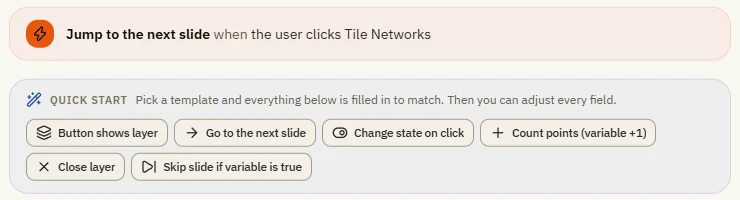
The built-in templates
| Template | What it does |
|---|---|
| Button shows layer | A click on an object shows a layer, for example a pop-up. |
| Go to the next slide | A click on an object goes to the next slide. |
| Change state on click | The clicked object changes to the "Selected" state. |
| Count points (variable +1) | Every click adds 1 to a number variable. |
| Close layer | A click hides the layer again, for example from an "X". |
| Skip slide if variable is true | When the slide starts, it moves on right away if a true/false variable is true. |
Button shows a layer
A click on "Learn more" opens the layer "details".
- In the editor: select the button, click Trigger, Quick start Button shows layer, choose the layer under Layer.
{ "when": { "type": "click", "object": "btn-more" }, "do": { "type": "showLayer", "layer": "details" } }
Close a layer
A click on the "X" in the layer hides it again. Put this trigger on the layer itself: first click the layer at the top of the stage, then add the trigger.
- In the editor: select the close button on the layer, Quick start Close layer.
{ "when": { "type": "click", "object": "btn-close" }, "do": { "type": "hideLayer" } }
Go to the next slide
- In the editor: select your button, Quick start Go to the next slide.
{ "when": { "type": "click", "object": "btn-next" }, "do": { "type": "nextSlide" } }
Change state on click
The clicked card changes to "Selected", for example to show it was chosen.
- In the editor: select the card, Quick start Change state on click.
{ "when": { "type": "click", "object": "card-a" }, "do": { "type": "changeState", "object": "card-a", "state": "selected" } }
Count points
Every click adds 1 to the number variable "Points".
- In the editor: select the button, Quick start Count points (variable +1), choose the variable.
{ "when": { "type": "click", "object": "btn-correct" }, "do": { "type": "adjustVariable", "variable": "Points", "op": "add", "value": 1 } }
Skip a slide when a variable is true
When the slide starts, it moves on at once if "ChapterDone" is true. Good for chapters someone has already finished.
- In the editor: nothing selected, Quick start Skip slide if variable is true, choose the variable.
{ "when": { "type": "timelineStarts" }, "if": [{ "kind": "variable", "variable": "ChapterDone", "op": "==", "value": true }], "do": { "type": "nextSlide" } }
Branch on a score
On a decision slide, go to the bonus slide with 8 or more points, otherwise to the review slide.
- In the editor: action Jump to slide (bonus), event User clicks on your button, under 3 Conditions add Variable: "Points" is greater than or equal to 8. Under Advanced, turn on Else action and choose Jump to slide (review).
{
  "when": { "type": "click", "object": "btn-continue" },
  "if": [{ "kind": "variable", "variable": "Points", "op": ">=", "value": 8 }],
  "do": { "type": "jumpToSlide", "slide": "bonus" },
  "else": { "type": "jumpToSlide", "slide": "review" }
}
Unlock Next after a video
Hide your own Next button at the start and show it when the video ends.
- In the editor: action Show object (your Next button), event Media completes with the video as object.
{ "when": { "type": "mediaCompletes", "object": "intro-video" }, "do": { "type": "showObject", "object": "btn-next" } }
Show a hint after five seconds
- In the editor: action Show layer (hint), event Timeline reaches, point in time 5 seconds.
{ "when": { "type": "timelineReaches", "time": 5000 }, "do": { "type": "showLayer", "layer": "hint" } }
Keyboard shortcut for help (course-wide)
A project trigger: pressing H anywhere opens the help slide as a lightbox (a window on top of the current slide).
- In the editor: action Slide as lightbox (help slide), event Key pressed, key H. Under Advanced: Save in, choose Project.
{ "when": { "type": "keyPress", "key": "h" }, "do": { "type": "lightboxSlide", "slide": "help" } }
Store a name and greet
A text input stores what learners type in the text variable "Name". You link the two in the Format tab of the text input, field Variable. A text box on the next slide reads Welcome, %Name%!. To show the Next button only after something was typed:
- In the editor: action Show object (Next button), event Focus lost on the text input, condition Variable: "Name" is not empty.
{ "when": { "type": "loseFocus", "object": "name-input" }, "if": [{ "kind": "variable", "variable": "Name", "op": "isNotEmpty" }], "do": { "type": "showObject", "object": "btn-next" } }
Simpler layout on phones
Show a simplified layer when the player window is narrower than 600 px.
- In the editor: action Show layer, event Timeline starts, condition Window width narrower than 600 px.
{ "when": { "type": "timelineStarts" }, "if": [{ "kind": "window", "op": "<", "width": 600 }], "do": { "type": "showLayer", "layer": "compact" } }
Complete the course on the last slide
For the completion rule By trigger in the publish window (see Preview and publish).
- In the editor: on the last slide, action Complete course with status Completed, event Timeline starts.
{ "when": { "type": "timelineStarts" }, "do": { "type": "completeCourse", "status": "completed" } }
If something doesn't work
- The layer opens but won't close: the close trigger must be stored on the layer, not on the slide.
- Points don't add up: check that the variable has the type Number and starts at 0 ( View Variables).
- The keyboard shortcut only works on one slide: it must be a project trigger (Advanced: Save in > Project).
- "Complete course" has no effect in Moodle: in the publish window, the completion rule must be By trigger.
Triggers and variables
Make slides react - events, actions and conditions, variables for text, numbers and true/false, and where triggers live.
Questions and results
Graded questions, surveys and freeform interactions, results slides with passing score, retries and timers, and question banks with random draws.