

Triggers and variables
A trigger is a small rule that makes your course react: when something happens, do something. Example: when someone clicks the "Next" button, go to the next slide. You can add a condition (if the score is at least 8) and something to do otherwise. With triggers you build buttons, pop-ups, branching paths and little games, without writing any code.
A variable is a named box that remembers a value while someone works through the course, for example their points, their name or whether a chapter is done.
You work with these parts:
- Triggers tab: the list of all triggers of the slide, its layers and the whole course.
- Trigger window: where you set the action, the event and optional conditions.
- Variables window: where you create and manage your variables.
- Built-in variables: values the player fills in by itself, such as the score or the learner's name.
Set up in 4 steps
Open the Triggers tab
In the properties panel on the right, click the lightning icon. That is the Triggers tab. It lists every trigger of the current slide. If you selected an object, you can also right-click it and choose Add trigger.
Click Trigger
Click the orange Trigger button at the top of the panel. The window New trigger opens. Under Quick start you can pick a ready-made template (for example Button shows layer), and all fields are filled in for you. More templates: Trigger recipes.
Choose the action and the event
Under 1 Action, choose what should happen, for example Show layer. Under 2 Event, choose when it happens (When, for example User clicks) and on which Object. Below every choice you see a short explanation with an example.
Check the sentence and save
At the top of the window, the trigger reads as a sentence, for example "Jump to the next slide when the user clicks Tile Networks". If it says what you want, click Add trigger.
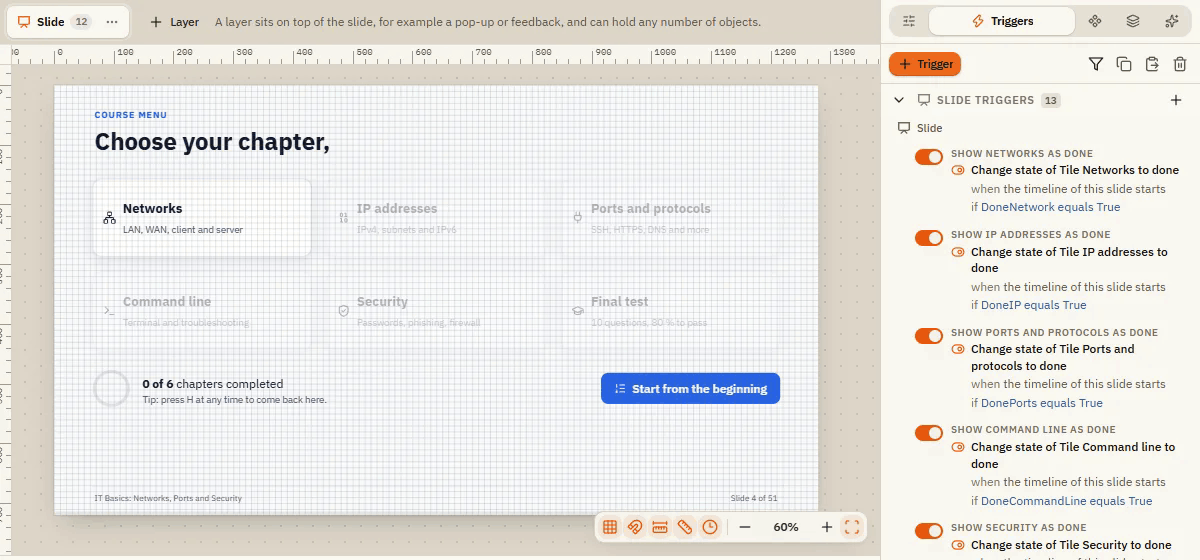
The Triggers tab
The tab groups triggers by where they are stored: Slide triggers, one group per layer (Layer triggers) and Project triggers. Inside a group, triggers are sorted by the object they belong to.
| Element | What it does |
|---|---|
| Trigger (orange button) | Opens New trigger for the current slide or layer. |
| Filter icon | Show only triggers of the selected objects. Handy on busy slides. Show all triggers again clears the filter. |
| Copy and paste icons | Copy selected triggers and paste them into another slide or layer (Paste triggers). |
| Trash icon | Delete selected triggers. |
| Plus in a group header | Adds a trigger to exactly that group, for example to the project triggers. |
| Switch in front of a trigger | Turns the trigger off without deleting it (Turn trigger off (it is kept)). Useful for testing. |
| Small heading above a trigger | Your own Label, if you gave one. |
| Click on a trigger | Selects it, for example to copy or delete it. A double-click opens Edit trigger. |
| Right-click or the small buttons on a trigger | Edit trigger, Duplicate trigger, Delete trigger. |
The trigger window
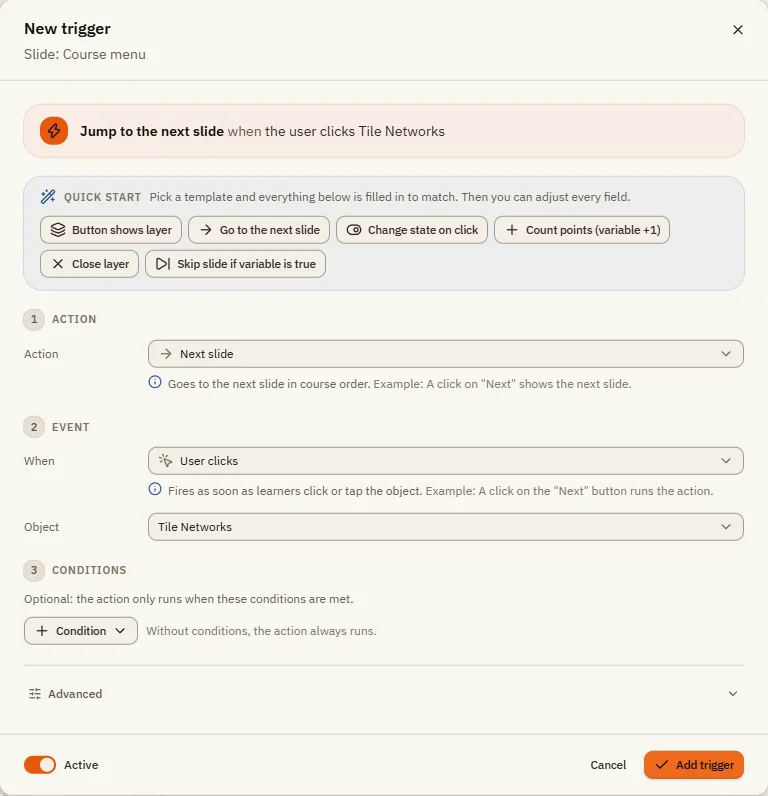
| Element | What it does |
|---|---|
| Sentence at the top | Shows the whole trigger in plain words, so you can check it at a glance. |
| Quick start | Six templates that fill in everything: Button shows layer, Go to the next slide, Change state on click, Count points (variable +1), Close layer, Skip slide if variable is true. |
| 1 Action | What happens. Depending on the action, more fields appear, for example Layer, Slide or Variable. |
| 2 Event | When it happens, and for which Object. |
| 3 Conditions | Optional. The action only runs if the conditions are met. Condition adds one. Without conditions, the action always runs. |
| Advanced: Else action | Something to do when the conditions are not met, for example show a "Wrong" layer instead of "Correct". Add a condition first. |
| Advanced: Label | Your own name for the trigger list, for example "Navigation". Helps when a slide has many triggers. |
| Advanced: Save in | Slide (only here), Layer (only while that layer is visible) or Project (on every slide). |
| Active | Off: the trigger is saved but does nothing. |
| Add trigger / Save | Saves the trigger. Cancel closes the window without changes. |
Actions
An action is what the trigger does. In the window they are sorted into groups:
| Group | Actions |
|---|---|
| General | Change state, Show layer, Hide layer, Show object, Hide object, Toggle visibility, Set focus, Play emphasis, Adjust variable, Start motion path |
| Navigation | Next slide, Previous slide, Jump to slide, Jump to scene, Slide as lightbox, Close lightbox |
| Media | Play media, Pause media, Stop media, Pause timeline, Resume timeline, Restart timeline, Jump on timeline |
| Background audio | Play background audio, Pause background audio, Stop background audio, Set background audio |
| Project / results | Submit interaction, Submit results, Review results, Reset results, Retry quiz, Print results, Exit course, Restart course, Complete course |
| More | Open URL / file, Send email, Execute JavaScript |
A layer is an extra level on top of a slide, for example a pop-up or a feedback message. A lightbox opens another slide as a window on top of the current one.
Events
An event is the moment the trigger starts.
| Group | Events |
|---|---|
| Mouse | User clicks, User double-clicks, User right-clicks, Mouse hovers over, Mouse enters, Mouse leaves |
| Timeline | Timeline starts, Timeline ends, Timeline reaches (a point in time or a cue point) |
| Objects and variables | Media completes, State changes, Variable changes, Focus lost, Animation completes |
| Drag and drop | Object dropped on, Object dragged over |
| Keyboard and gestures | Key pressed, User swipes |
| Motion | Object intersects, Intersection ends, Object enters the slide, Object leaves the slide |
"Timeline starts" fires as soon as a slide or layer opens. Use it for things that should happen by themselves.
Conditions
| Condition | What it checks | Example |
|---|---|---|
| Variable | The value of a variable: equals, does not equal, is less than, is less than or equal to, is greater than, is greater than or equal to, contains, does not contain, is empty, is not empty | "Points" is greater than or equal to 8 |
| Object state | Whether an object is (or is not) in a state | The checkbox is "Selected" |
| Intersection | Whether two objects overlap | The puzzle piece lies on the field |
| Window width | How wide the learner's player window is, with presets for iPhone, iPad, laptop and large screens | Narrower than 600 px: show a simpler layer |
Several conditions are combined with AND (all must be true) or OR (one is enough).
Variables
Open View Variables to manage your variables. You can also create a new one right inside the trigger window: open the variable list and choose New variable.
| Element | What it does |
|---|---|
| Templates | Ready-made variables: Count points, Save name, Chapter done, Count attempts. |
| New variable | Creates an empty variable. |
| Name | Letters, digits and _, no spaces, not starting with a digit. |
| Type | Number (points, attempts), Text (a name, an answer) or True/false (like a switch: chapter done or not). |
| Initial value | The value at the start of the course. |
| Description | A note for you: what is the variable for? |
| Used | How often the variable is used in the course. |
| Built-in variables | Read-only values from the player (see below). |
To change a variable while the course runs, use the action Adjust variable. It can Assign (=), Add (+), Subtract (-), Multiply (*), Divide (/), Modulo (%), Toggle (true/false), pick a Random number or Append (text).
To show a variable in a text box, write its name between percent signs: %Name%. Example: "Well done, %Name%!"
Built-in variables
The player fills these values by itself. You can show them in texts and use them in conditions, but you cannot change them. Examples: Project.SlideNumber, Project.TotalSlides, Project.ProgressPercent, Slide.Title, Results.ScorePercent, Results.Passed, Learner.Name and Date.Today. In the variable list of the trigger window you find all of them under Built-in (read-only).
Project triggers
Project triggers apply on every slide. Example from the sample course: when the H key is pressed, jump to the "Course menu" slide. Create one with the plus next to Project triggers, or choose Project under Advanced: Save in.
JavaScript triggers
The action Execute JavaScript runs your own code. You only need it for very special cases.
If something doesn't work
- Nothing happens on click: check the switch in front of the trigger (it must be on) and the Object under Event. Is the trigger stored on the right layer?
- The trigger fires on the wrong slide: under Advanced: Save in, check whether it is a slide, layer or project trigger.
- The condition never matches: open the preview with F12 and click Variables. There you watch every value change live.
- The else action can't be switched on: it needs at least one condition first.
- JavaScript does nothing: it never runs in the preview. Publish the course and turn on Allow JavaScript.