

Objects
Everything on a slide is an object: a text box, a shape, a picture, a button, a table. You add objects from the Insert tab, select them on the slide and change them in the Format tab on the right. This page covers:
- Inserting objects and which kinds there are.
- The Format tab: position, size, colors and text.
- Kinds of objects and their own options.
- Arranging: selecting, aligning, grouping and locking.
- Accessibility: so screen readers can describe your slides.

Insert an object in 3 steps
Open the Insert tab
Click Insert in the ribbon. The tools are sorted into groups: Text, Graphics, Media, Interaction and Assessment.
Pick an object
Click, for example, Text box or Button. Buttons with a small arrow, like Shapes or Input, open a list to choose from first. The object appears on the slide.
Place and style it
Drag the object where you want it and pull the handles to resize it. On the right, the Format tab shows all its settings.
The Insert tab
| Group | Objects |
|---|---|
| Text | Text box |
| Graphics | Shapes, Lines (see Lines and polygons), Icon, Chart, Progress, Table |
| Media | Image, Video, Audio, Media library, Web object, Captions (see Media) |
| Interaction | Button, Hotspot, Input, Marker, Scroll panel |
| Assessment | Question, Results slide, Question banks (see Questions and results) |
The Format tab
Select an object and the Format tab shows its settings, sorted into sections. The first sections are the same for almost every object.
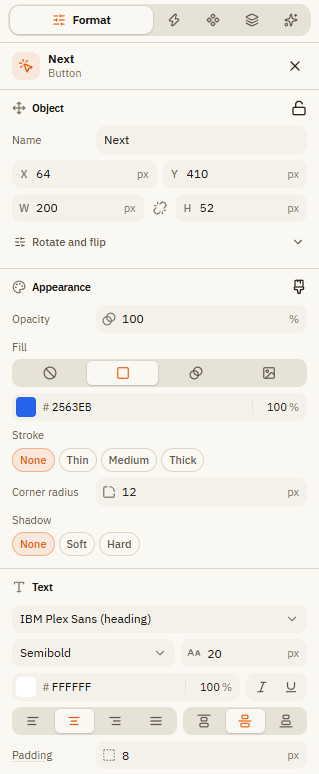
| Section | What you set there |
|---|---|
| Object | Name (shown in the timeline and in triggers), position X and Y, width W and height H in pixels. The chain icon locks the aspect ratio. Rotate and flip turns or mirrors the object. The lock icon locks it in place. |
| Appearance | Opacity, Fill (none, color, gradient or image), Stroke (None, Thin, Medium, Thick), Corner radius and Shadow (None, Soft, Hard). |
| Text | Font, weight, size, color, italic, underline, alignment (left to justified and top to bottom) and Padding, the space between border and text. |
| Type section | Options only this kind of object has, for example the icon of a button or the rows of a table. |
| Accessibility | Alt text and more, see below. |
Text
Double-click a text box to type. A small toolbar appears above it.
| Element | What it does |
|---|---|
| Paragraph format | Paragraph, Heading 1 to Heading 3 or Quote. |
| Bold, Italic, Underline | Formats the selected words. |
| Bulleted list, Numbered list | Turns paragraphs into a list. |
| Alignment, Font size, Text color | Change the look of the text. |
| Insert link | Links to a Website (http or https address, or an email address) or to another Slide of the course. |
| Insert variable | Inserts a placeholder like %Score%. In the course, learners see the current value there. |
The Format painter (paintbrush on the Home tab) copies the look of the selected object to the next object you click. Esc cancels. With the keyboard: CtrlShiftC copies the format, CtrlShiftV pastes it.
Kinds of objects
| Object | What it is and what you can set |
|---|---|
| Shapes | Rectangle, rounded rectangle, ellipse, triangle, diamond, pentagon, hexagon, star, arrows in four directions, line, speech bubble, heart and cloud. Shapes can hold text, so they also work as labels or simple buttons. |
| Icon | A symbol from the built-in Lucide library. Search with English words, for example "arrow". |
| Chart | Bar, Line, Pie or Donut. You enter categories and data series with names and colors. Pie and donut show only the first data series. |
| Progress | A Bar or Ring that shows a number, by default the course progress (Project.ProgressPercent). |
| Table | Set Rows, Columns, column widths (Distribute evenly), a Header row, its color and the Lines. Double-click a cell to type, Tab jumps to the next cell. |
| Button | Text with an optional icon (Left, Right or Icon only). Give it a trigger so it does something. |
| Hotspot | An invisible click area: Rectangle, Ellipse or Freeform with your own points. Good for "click on the right spot in the picture". |
| Marker | A small icon that opens a pop-up with a title and text when clicked. |
| Input | Text input (stores what learners type in a variable), Checkbox, Radio button, Slider and Dial (both store a number). |
| Web object | Shows a web page by its https address, in a protected Sandbox by default. |
| Scroll panel | An area learners can scroll, with other objects inside. |
Select, arrange and align
| What you want | How |
|---|---|
| Select several objects | Hold Shift or Ctrl and click, or drag a frame on an empty spot. |
| Move precisely | Arrow keys move by 1 px, ShiftArrow by 10 px. |
| Put in front or behind | Order on the Home tab: Bring to front, Bring forward, Send backward, Send to back. |
| Line up several objects | Align on the Home tab, or the six small align buttons next to it. Distribute spaces them evenly. |
| Group | Select several and press CtrlG. Ungroup with CtrlShiftG. A group moves and animates as one. |
| Lock | Right-click and Lock. The object can no longer be moved by accident. |
| Hide until later | Right-click and Hide at start. A trigger can show it later. |
The right-click menu of an object also has Cut, Copy, Paste, Duplicate, Delete, Move to layer, Reset to design and Add trigger.
Button set
Objects with the same set name behave like radio buttons: clicking one selects it and deselects the others. You set it in the Button set section of the Format tab. Design the Selected state in the States tab so learners can see their choice.
Accessibility
Every object has an Accessibility section. It helps learners who use a screen reader (a program that reads the screen aloud).
| Setting | What it does |
|---|---|
| Alt text | A short description that the screen reader reads aloud, for example "Chart: revenue grows by 12 % in 2024". |
| Decorative | The screen reader skips the object. Use it for pure decoration. |
| Initially hidden | The object is invisible at the start and only appears through a trigger. |
| Custom tab order | Sets when the Tab key reaches this object. Smaller numbers come first. |
Pictures, icons and charts need an alt text or Decorative. The check before publishing reminds you.
If something doesn't work
| Problem | What to do |
|---|---|
| I can't select or move an object | It is locked. Right-click it and choose Unlock, or click the lock in its timeline row. |
| An object is hidden behind another one | Select it in the timeline and use Order, Bring to front. |
| Colors don't follow the course design | They were set by hand. Use Reset to design. |
| The web object stays empty | Only https addresses load reliably. Some websites also refuse to be shown inside other pages. |
| The Format tab shows few options | Several different kinds of objects are selected. Type options only show when all selected objects are of the same kind. |