

The course script
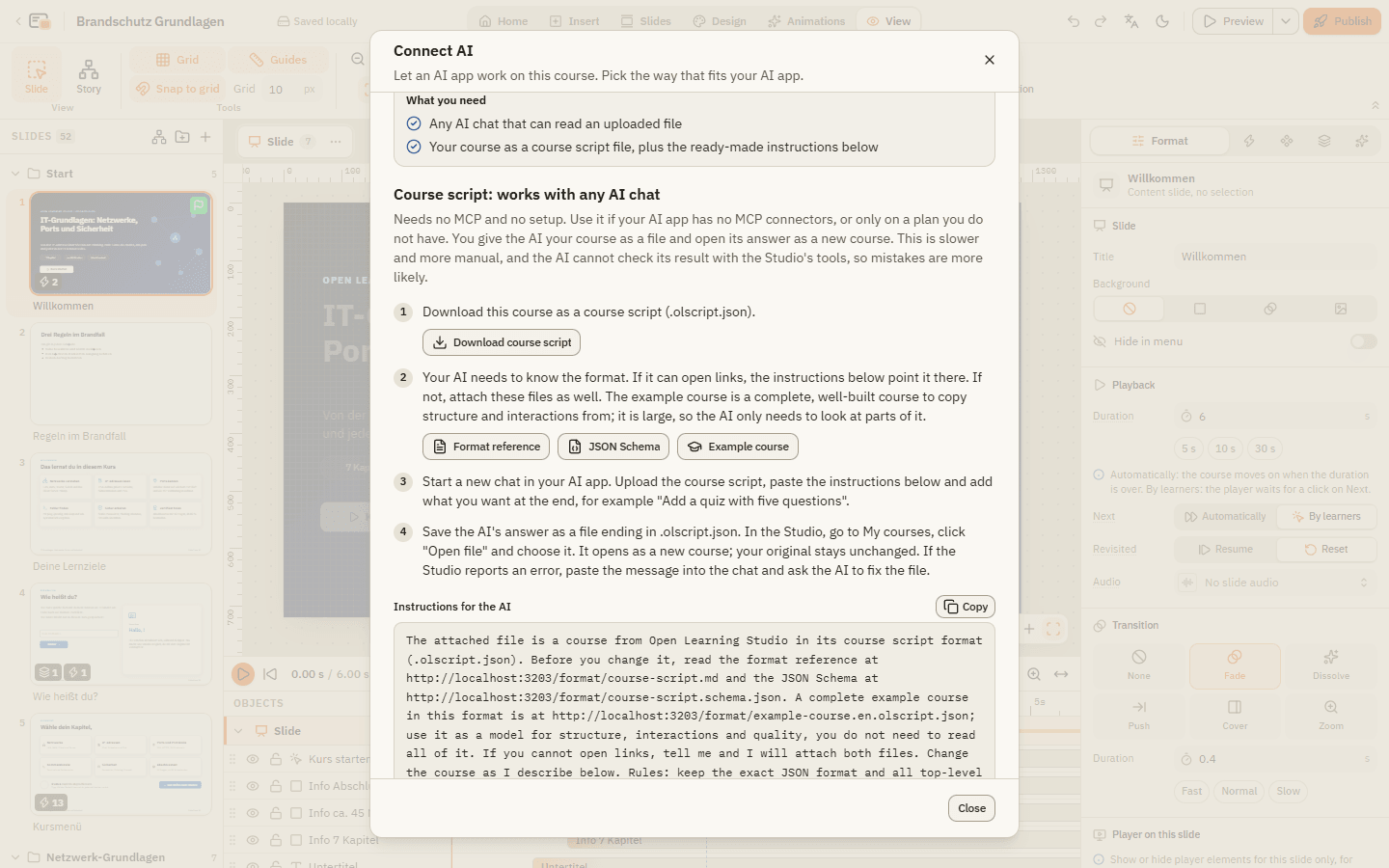
The course script is your course written as text. AI apps cannot look at the editor, but they read and write text very well. So the Studio can turn every course into a course script and turn a course script back into a course. That is how an AI reads your course and how it hands you a new one. You never have to write a course script yourself; this page is for the curious.
- File name: ends in
.olscript.json. - Download: on My courses in the course menu with Export as course script (for AI), or in the Connect AI dialog with Download course script.
- Open: on My courses with Open file, or drag the file onto the page. It opens as a new course.
Download and open in 4 steps
Open My courses
Go to My courses. Every course in this browser is listed there.
Download the course script
Open the menu of a course and choose Export as course script (for AI). The Studio saves a .olscript.json file.
Let the AI work on it
Attach the file in your AI chat and say what you want. Without MCP, also paste the Instructions for the AI from the dialog (see Working with AI).
Open the result
Click Open file on My courses and pick the file the AI gave you. It opens as a new course; your original stays unchanged.
What a course script looks like
Here is a complete tiny course: a welcome slide with a Start button, one question and a results slide.
{
  "format": "open-learning-studio-script",
  "version": 1,
  "title": "Fire safety basics",
  "language": "en",
  "scenes": [
    {
      "key": "intro",
      "title": "Introduction",
      "slides": [
        {
          "key": "welcome",
          "title": "Welcome",
          "layout": "title",
          "heading": "Fire safety in 10 minutes",
          "subheading": "What to do when the alarm sounds",
          "objects": [
            { "type": "button", "key": "btn-start", "text": "Start", "place": "bottom-right" }
          ],
          "triggers": [
            { "when": { "type": "click", "object": "btn-start" }, "do": { "type": "nextSlide" } }
          ]
        },
        {
          "key": "exit-question",
          "title": "Exits",
          "question": {
            "type": "multipleChoice",
            "prompt": "Where do you go when the alarm sounds?",
            "choices": [
              { "text": "To the nearest marked exit", "correct": true },
              { "text": "To the elevator" },
              { "text": "Back to your desk" }
            ]
          }
        },
        { "key": "result", "title": "Result", "results": { "passPercent": 80 } }
      ]
    }
  ]
}
Read it like this:
| Part | What it means |
|---|---|
title, language | The course name and the language of its texts. |
scenes | The chapters of the course, each with its slides. |
key | A short name for every part, for example btn-start. Triggers and questions point to each other by these names. |
layout, heading, subheading | A slide built from a layout, with its title texts. |
objects | Things on the slide: texts, shapes, buttons, images and more. place puts them at a named spot instead of exact positions. |
triggers | "When this happens, do that": here, a click on the button goes to the next slide. |
question | A question slide. The Studio adds the Submit button and the feedback on its own. |
results | A results slide with the passing score in percent. |
Ground rules
- Leave out what you don't need: everything missing gets a sensible default.
- Every
keyis unique in the whole course and uses letters, digits,-,_and.. - Times are in milliseconds (
1000is one second), positions and sizes in pixels on the slide (normally 1280 x 720). - Texts may use simple formatting:
**bold**,*italic*, lists, links and variables such as%Name%. - The field names are English; the texts are in the course language.
The full reference
Everything the editor can do also exists in the course script: every object type, every trigger action and condition, all question types, themes, player settings, masters and question banks. The complete description is the Format reference. You find it in the Connect AI dialog under Course script, together with the JSON Schema (the exact rules for programs) and an Example course (the full "Example: IT basics" course as a script). AI apps with MCP read the same reference on their own.
If something doesn't work
The Studio says the file is not valid. The message names the place and often the fix. Paste it into your AI chat and ask the AI to correct the file.
The AI's answer is cut off. Big courses make long answers. Ask the AI to change one chapter at a time, or connect it with MCP (see Connect your AI app), so it doesn't have to send the whole course back.
My JavaScript triggers stopped working after opening the file. That is intended. Check the code, then switch on Allow JavaScript in View Course.