

Timeline, states and animation
A slide is not just a still picture: it plays for a few seconds, and objects can appear one after another, move or change their look. Three tools control this:
- Timeline: when each object appears and disappears.
- States: other looks of the same object, for example when the mouse is over a button.
- Animations: how an object comes in, goes out, draws attention or moves along a path.
Let a text appear after 2 seconds in 3 steps
Select the object
Click the text on the slide. Its row in the timeline below is highlighted.
Move its bar
Drag the gray bar in the timeline to the right until it starts at 2 s. Or open the Animation tab on the right and type 2 under Start time.
Add an entrance
On the Animations tab of the ribbon, click the button under Entrance and pick, for example, Fade in. Click Play in the timeline to watch it.
The timeline
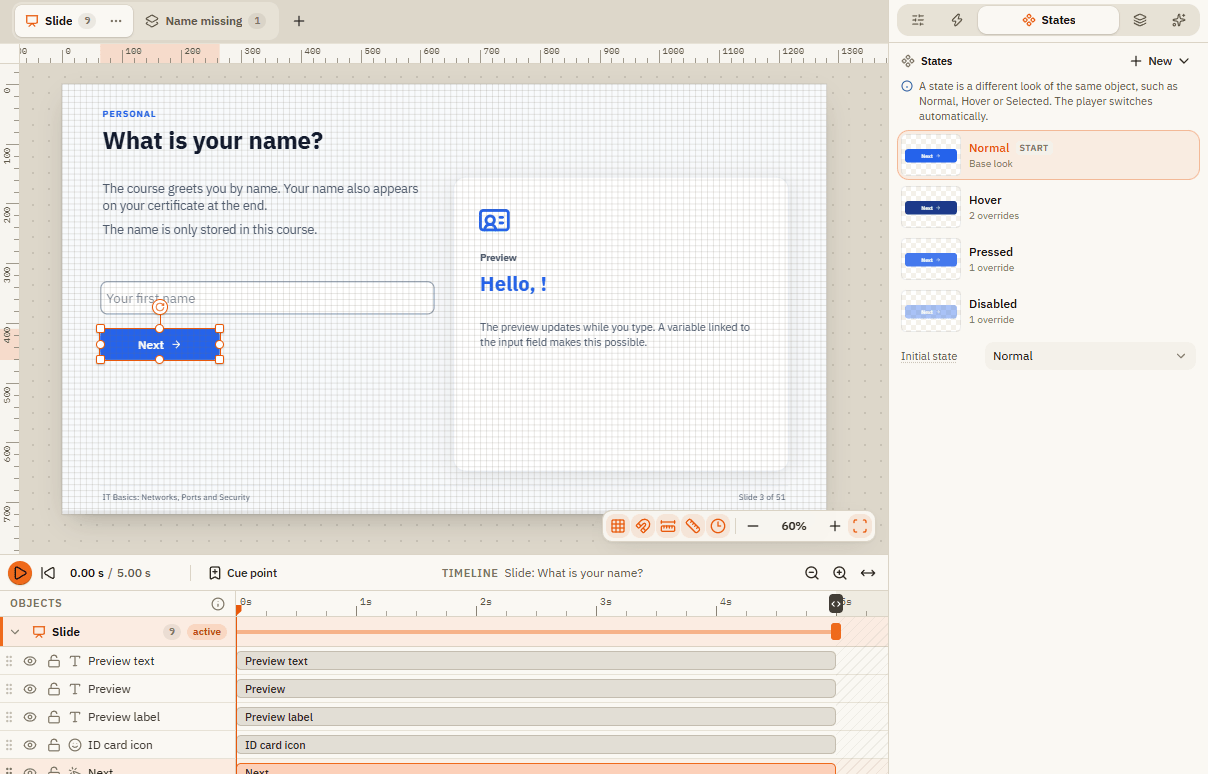
Every slide and every layer has its own timeline. Each row is one object; the bar shows when it is visible.
| Element | What it does |
|---|---|
| Play and Go to start | Play the slide in the editor, or jump back to 0 seconds. |
| Time display | Current time and total length, for example 0.00 s / 5.00 s. |
| Cue point | Sets a marker at the current time. Drag it to move it; you can also rename it. Triggers can react to it with the event Timeline reaches. |
| Bar of an object | Drag it to move it in time. Drag its left or right edge to change start or end. |
| End of the timeline | Drag it to make the slide longer or shorter. Fit duration fits the time axis to the window. |
| Zoom buttons | Make the time axis larger or smaller. You can also hold Ctrl and scroll. |
| Row order | The top row is in front. Drag a row by its name up or down to change the order, or onto another layer. On a tablet, press and hold the row briefly, then drag. |
| Eye | Hides the object in the editor while you work. |
| Lock | Locks the object so it can't be moved by accident. |
Timing in the Animation tab
| Setting | What it does |
|---|---|
| Start time and End time | The same as dragging the bar, but in exact seconds. |
| Show until end of slide | The object stays visible until the slide is over. |
| Always show | The object stays visible even if you make the slide longer later. |
States
A state is another look of the same object. The player switches between built-in states by itself.
| State | When learners see it |
|---|---|
| Normal | The usual look. |
| Hover | While the mouse is over the object. |
| Pressed | While the object is being clicked. |
| Selected | After a click on a selectable object, for example in a button set. |
| Visited | After the object was clicked once. |
| Disabled | The object can't be clicked. |
| Hidden | The object is invisible. |
| Drag over, Drop correct, Drop incorrect | During drag and drop tasks. |
Open the States tab
Select the object and open the States tab on the right. If it only has Normal, click Add Hover or Add Selected, or use New for any state.
Pick a state and change it
Click the state in the list. The editor shows Editing state above the slide. Change colors, text or picture in the Format tab. Only what differs from Normal is saved.
Finish
Click Done or Back to Normal. The list shows how many changes ("overrides") each state has.
| Element | What it does |
|---|---|
| New | Adds a built-in state or a Custom state... with any name. Switch to custom states with the trigger action Change state. |
| State menu | Rename, duplicate or delete a state. |
| Initial state | The state the object has when the slide loads, for example Disabled for a button that should only work later. |
| Reset style | Removes this state's own colors, so it looks like Normal again. |
Entrance and exit
Select one or more objects and use the Animations tab of the ribbon or the Animation tab on the right.
| Setting | What it does |
|---|---|
| Entrance | How the object appears: Fade in, Fly in, Float, Grow, Shrink, Zoom, Spin, Wipe, Split, Bounce, Swivel, Spin and grow, Grow and spin, Random bars, Shape or Circle. |
| Exit | How it disappears, for example Fade out, Fly out, Enlarge or Reduce. |
| Direction | Where it comes from or goes to, for example From left. |
| Duration | How long the animation takes. |
| Easing | How the speed changes: Linear, Accelerate, Decelerate, Smooth, Spring back, Elastic or Bounce. |
| Text sequence | For text: As one object, By paragraph or By word. |
Emphasis
An Emphasis draws attention to an object that is already visible. You find it in the Animation tab on the right.
| Setting | What it does |
|---|---|
| Effect | Pulse, Teeter, Spin, Grow, Flash or Wave. |
| Loop | How many times it plays in a row. |
| Play when the timeline starts | On: plays by itself. Off: play it with the trigger action Play emphasis, for example when learners haven't clicked for a while. |
Motion paths
A motion path moves an object along a line, for example a car across a street.
Add a path
Select one object and click Animations Add path. Pick a preset: Line to the right, Line to the left, Line up, Line down, Diagonal, Arc, Circle, Zigzag or Custom.
Shape the path
Drag the path points on the slide. Click between two points to add one, double-click a point to remove it.
Set the details
In the Animation tab choose duration, easing and the options below.
Decide how it starts
Switch on Start automatically and set a Start time. Or leave it off and start the path with the trigger action Start motion path.
| Setting | What it does |
|---|---|
| Smoothed | Rounds the corners of the path into curves. |
| Closed | The path returns to its start, for example for a circle. |
| Relative start | The path starts wherever the object currently is. |
| Orient to path | The object turns in the direction it moves. |
Slide and layer transitions
Under Slide transition on the Animations tab you choose how the slide appears: None, Fade, Push, Cover, Zoom or Dissolve, with direction and duration. Pick a layer in the bar above the slide to set the transition of that layer instead. Apply to all copies it to all slides (or all layers of the slide).
If something doesn't work
| Problem | What to do |
|---|---|
| An object never appears in the preview | Its bar starts after the end of the slide, or it is set to Initially hidden. Check the timeline and the Accessibility section. |
| The animation doesn't play | Play the slide in the preview. In the editor, use Play in the timeline. |
| Add path is greyed out or shows a note | Motion paths are edited for one object at a time. Select just one object. |
| My hover look doesn't show | The object has no Hover state yet. Add it in the States tab. |
| The slide is too short for my animation | Drag the end of the timeline to the right, or raise the slide's Duration. |