

Questions and results
With questions you check what learners understood, from a quick true/false check to a final test with a passing score. A results slide at the end adds up the points and shows whether someone passed. If you publish for Moodle, it also sends the score there as the grade.
The parts:
- Question slides: one question per slide, with a Submit button and feedback.
- Question tab: the settings of a question (answers, points, attempts, feedback).
- Results slide with its Result tab: which questions count, passing score, timer, review and retry.
- Question banks: a pool of questions from which each attempt draws a random selection.
Set up a small quiz in 4 steps
Insert a question
Click Insert Question. The window Insert question shows all question types with a short explanation. Pick one, for example Multiple choice, and click Insert. A double-click inserts it right away. The new slide comes right after the current one.
Write the question and answers
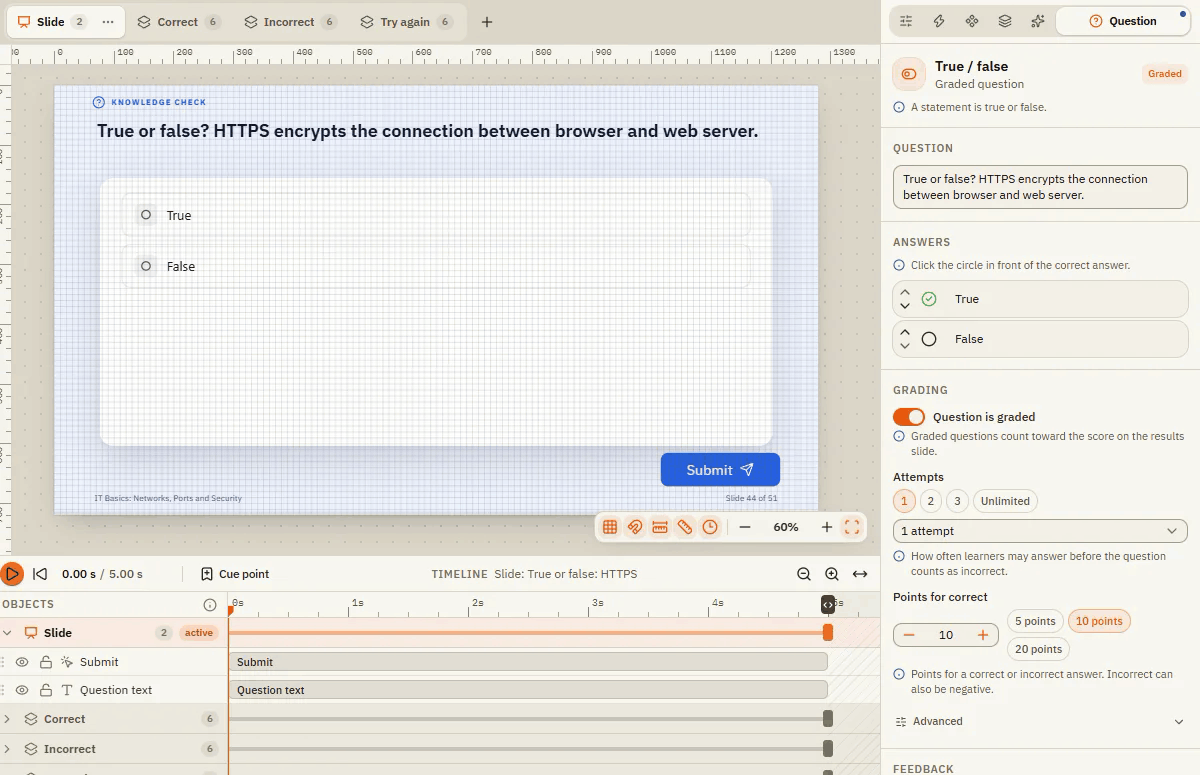
On the right, the Question tab opens. Type your question under Question and the answers under Answers. Click the circle in front of the correct answer.
Add a results slide
When all questions are done, click Insert Results slide. It is added at the end of the course and counts all graded questions.
Test it
Press CtrlShiftF12 to play the whole course in the preview. Answer the questions and look at the result.
Question types
In the window Insert question, the types are sorted into four groups.
Graded (have a correct answer and earn points)
| Type | Learners | Good for |
|---|---|---|
| Multiple choice | pick exactly one correct answer | knowledge questions |
| Multiple response | pick several correct answers | "Which of these belong to it?" |
| True / false | rate a statement | quick comprehension checks |
| Fill in the blank | type the answer | terms, names, short words |
| Numeric | type a number | calculations, quantities, years |
| Matching (drag) / Matching (dropdown) | match terms to their partners | term and definition |
| Sequence (drag) / Sequence (dropdown) | put steps in the right order | procedures |
| Hotspot | click the correct spot in an image | "Where is the emergency stop?" |
| Word bank | drag the matching word into a blank | gap sentences |
The dropdown variants work well without a mouse, for example on a keyboard.
Survey (no right or wrong)
Likert scale (agreement on a scale), Pick one, Pick many, Ranking, Short answer, Essay and How many (distribute a fixed total, for example 100 points).
Freeform (your own design)
Turn objects on your own slide into a question: Select one, Select many, Drag and drop, Hotspot and Text entry. Freeform questions draw no answer area, so you design everything yourself. On a normal slide, open the Question tab and choose Convert to freeform, or tick Convert the current slide instead of inserting a new slide in the insert window.
Results
The Results slide adds up the points and shows passed or not.
The Question tab
| Element | What it does |
|---|---|
| Question | The question text learners see. |
| Answers | The answer options. Click the circle (one correct answer) or tick the boxes (several) to mark what is correct. For matching, each row is a term and its partner; for sequences, the order you enter is the solution. |
| Question is graded | On: the question counts toward the score on the results slide. Off: it is just practice. |
| Shuffle answers | Answers appear in a different order on each attempt, so nobody can guess by position. |
| Attempts | How often learners may answer before the question counts as incorrect: 1, 2, 3 or Unlimited. |
| Points for correct | Points for a correct answer, with shortcuts 5 points, 10 points, 20 points. |
| Advanced: Points for incorrect | Points for a wrong answer. Can also be negative. |
| Advanced: Points per answer | Each answer gets its own points, which are added up (partial credit). |
| Advanced: Interaction ID (LMS) | The name under which the answer is reported to the LMS (the learning platform, for example Moodle). Only change it if your LMS expects fixed IDs. |
| Feedback | By question (one message for correct, one for incorrect), By answer (each answer gets its own message) or No feedback. |
Other question types show extra fields: accepted spellings and Match case for text answers, number rules such as "equal to 42" or "between 10 and 20" for numeric questions, the scale for Likert questions and the Total to distribute for How many.
Feedback layers
Each question slide comes with the layers Correct, Incorrect and Try again. They are the messages learners see after Submit. You find them in the bar above the slide and can design them like any other slide content. Try again appears when learners have attempts left.
The results slide
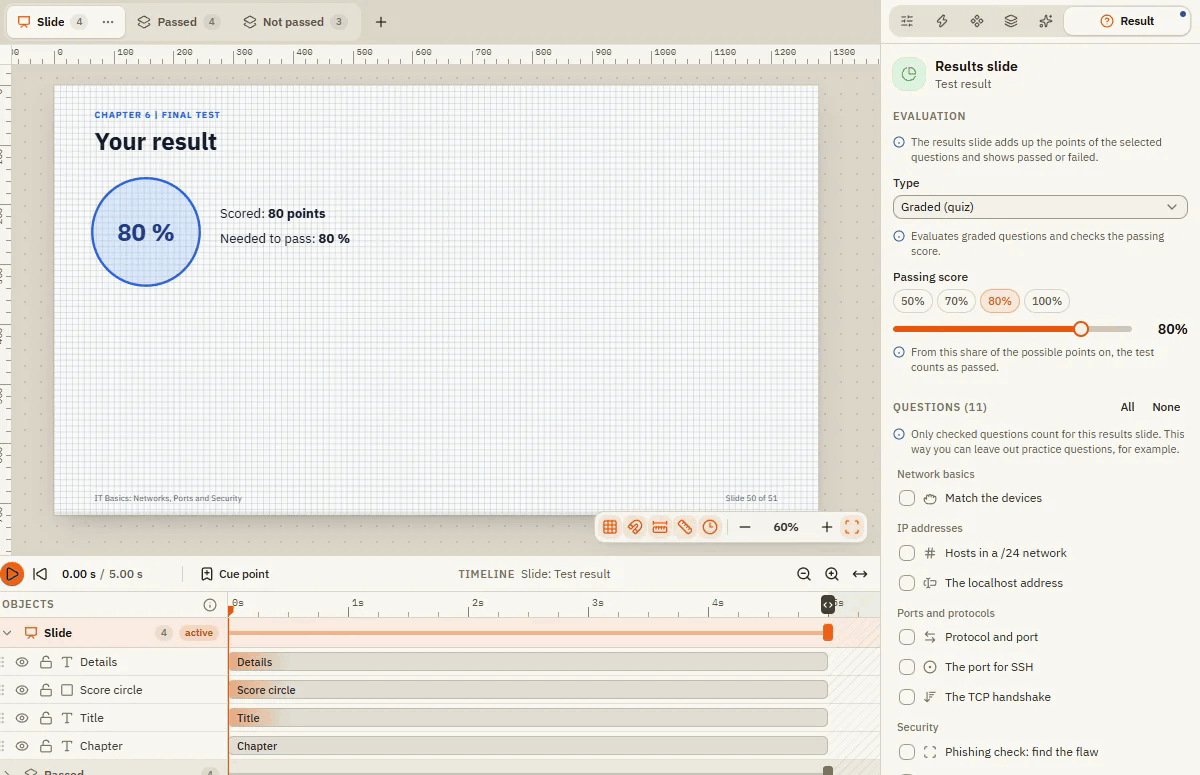
Select the results slide and open the Result tab.
| Element | What it does |
|---|---|
| Type | Graded (quiz): counts graded questions and checks the passing score. Survey: only collects survey answers, without points. Blended: both. |
| Passing score | From which share of the possible points the test counts as passed. Shortcuts 50%, 70%, 80%, 100%; new results slides start at 80%. |
| Questions | Only ticked questions count. This way you can leave out practice questions. All and None tick or untick everything. |
| Draw from question banks | Add draw: picks a number of random questions from a question bank on each attempt. Random mixes their order. |
| Time limit | Limits the time for the test, in minutes. When time runs out, the test is evaluated automatically. Learners see Time remaining or Time elapsed. |
| Allow review | Learners can look at their answers again afterwards, marked correct and incorrect. |
| Allow retry | Learners can take the test again. Maximum attempts limits how often. |
| Only incorrect questions when retrying | On a retry, only the wrongly answered questions are reset. |
| Score viewed questions only | Only questions someone actually saw count. Important when your course branches and not everyone sees every question. |
A new results slide brings two layers: Passed and Failed, each with the buttons Review answers and Retry. To show the score in a text, write %Results.ScorePercent%.
Question banks
A question bank is a pool of questions that are not fixed in the course. Example: create 20 questions and let the results slide pick 5 of them on each attempt. That way, not everyone gets the same test.
Create a bank
Click Insert Question banks and then Create bank (or New question bank).
Fill it
Add questions with New question, or copy existing question slides with Import from story. With Edit on the stage you change a question just like a normal slide.
Draw from it
Select the results slide, open the Result tab and click Add draw under Draw from question banks. Choose the bank and how many questions to draw.
Import questions
Already have questions in Moodle or a spreadsheet? Slides Import brings them in from Moodle GIFT or CSV / spreadsheet, as slides after the current slide or right into a question bank. How it works: Imports.
If something doesn't work
- "Results slide" is greyed out in the publish window: the course has no results slide yet. Add one with Insert Results slide.
- A question doesn't count: check Question is graded and whether the question is ticked under Questions in the Result tab.
- Everyone fails although answers are right: check the correct answers in the Question tab and the Passing score.
- The feedback layers are broken or missing: the Question tab then shows Repair feedback layers. Click it.
- Learners in a branching course fail too often: turn on Score viewed questions only.