

Editor tour
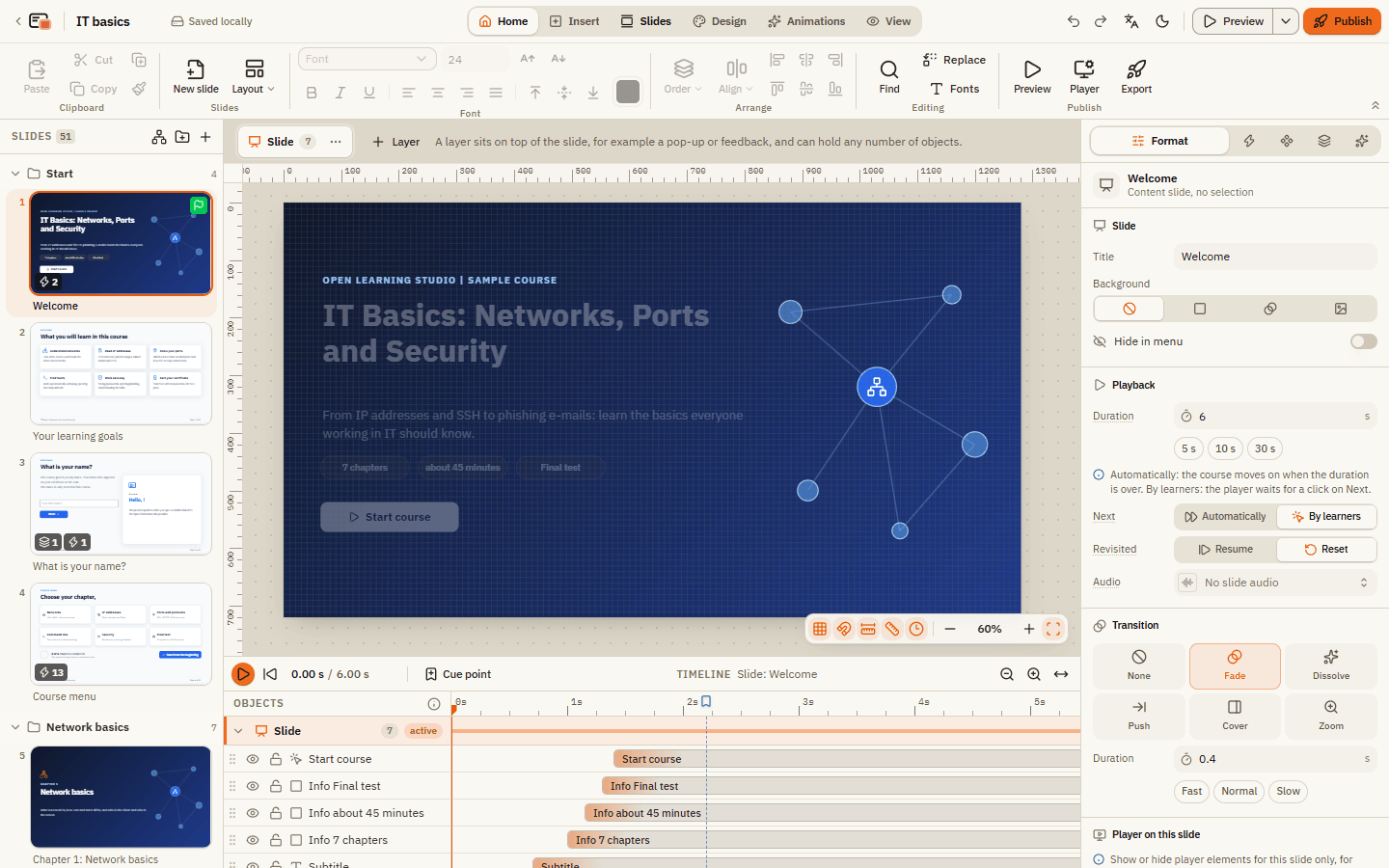
The editor is where you build your course. It looks a lot like a presentation program: slides on the left, the big slide in the middle, settings on the right. It has six areas:
- Top bar: course title, undo, preview and publish.
- Ribbon: the tabs with all tools, from Home to View.
- Slide list: all slides, sorted by chapter (scene).
- Stage: the slide you are working on.
- Timeline: when each object appears and disappears.
- Properties panel: the settings of whatever you selected.
Find your way in 3 steps
Pick a slide
Click a slide in the slide list on the left. It opens in the middle.
Select something
Click an object on the slide, for example a text or a button. The properties panel on the right now shows its settings.
Change it
Change a setting on the right, or drag the object on the slide. Made a mistake? Press CtrlZ to undo.
Top bar
| Element | What it does |
|---|---|
| Logo with arrow | Goes back to My courses. |
| Course title | Click it to rename the course. |
| Saved locally | Shows that everything is saved in this browser. Changes are saved automatically. |
| Ribbon tabs | Home, Insert, Slides, Design, Animations and View. |
| Undo and Redo | The arrows. Hover over them to see what they will undo, for example "Undo: Move". |
| Language | Switches the editor between English and German. Your course content is not changed. |
| Dark theme | Switches the editor to dark colors. |
| Preview | Plays the current slide like a learner sees it. The arrow next to it offers This slide, This scene and Whole project. |
| Publish | Creates the file for Moodle or a website. |
Ribbon
| Tab | What you find there |
|---|---|
| Home | Cut, copy, paste and the format painter, New slide and Layout, font and text alignment, Order and Align, Find, Replace and Fonts, plus Preview, Player and Export. |
| Insert | Everything you can put on a slide: Text box, Shapes, Lines, Icon, Chart, Progress, Table, Image, Video, Audio, Media library, Web object, Captions, Button, Hotspot, Input, Marker, Scroll panel, Question, Results slide and Question banks. |
| Slides | New slide, Duplicate, Import presentation, Delete, New scene, Story view, questions, and the slide settings Advance, When revisited, Hide in menu and Start slide. |
| Design | The course Design (colors and fonts), Edit master and Layout, the slide size and the Background. |
| Animations | Entrance and Exit animations, Add path for motion paths and the Slide transition. |
| View | Slide or Story view, Grid, Snap to grid, Guides, zoom, and the course-wide windows Variables, Media library, Player, Course, Translate, Version history, Connect AI and Show introduction. |
Every button has a tooltip that explains it. Collapse ribbon (the small arrows at the far right) hides the ribbon to give you more space. Click the active tab again to bring it back.
Slide list
On the left you see all slides, grouped by scene (chapter). The number next to Slides is the total.
| Element | What it does |
|---|---|
| Slide | Click to open it. Drag it to move it, also into another scene. |
| Small badges on a slide | Show the start slide, layers, triggers, question slides and results slides. |
| Story view icon | Shows all scenes and their connections at a glance. |
| Add scene icon | Creates a new chapter with one slide. |
| Add slide icon (plus) | Adds a new slide. |
| Right-click on a slide | Rename, Duplicate, New slide below, Set as start slide, Hide in menu, Move to scene, Delete. |
Details: Slides, scenes and layouts.
Stage
The stage in the middle shows the selected slide.
| Element | What it does |
|---|---|
| The slide | Drag objects to move them. Use the handles to resize and the round handle to rotate (hold Shift for 15-degree steps). Double-click a text to edit it. |
| Bar above the slide | Shows Slide and its layers. Click a layer to edit it, or Layer (plus) to create one. |
| Rulers | Pixel rulers at the top and left edge. |
| Bar below the slide | Switches Show grid, Snap to grid, Smart guides, Rulers and Respect timeline position on and off, plus zoom and Fit. |
You can drop image, video and audio files from your computer straight onto the stage.
Timeline
Below the stage, the timeline shows one row per object.
| Element | What it does |
|---|---|
| Play and Go to start | Play the slide right in the editor. |
| Cue point | Sets a marker at the current time. Triggers can react to it. |
| Bars | When an object appears and disappears. Drag the bar or its edges. |
| Rows | The top row is in front. Drag a row up or down to change the order, or onto another layer. |
| Eye and lock | Hide an object while you work, or lock it so it can't move. |
| Zoom buttons and Fit duration | Make the time axis larger or smaller. |
Details: Timeline, states and animation.
Properties panel
On the right, the panel adapts to what you selected. It has five tabs (shown as icons, the active one with its name):
| Tab | What you set there |
|---|---|
| Format | Position, size, colors, text and the options of this object type. With nothing selected: title, duration, background and transition of the slide. |
| Triggers | What happens on a click, at a certain time or when something changes. |
| States | Other looks of the object, for example when the mouse is over it. |
| Layers | The slide and its layers, with their settings. |
| Animation | How the object appears, disappears or draws attention. |
On question slides and results slides, the tabs Question and Result appear as well. Rarely used options sit in collapsible sections that open by themselves when something in them is set.
Right-click and rename everywhere
Everything that has actions also has a right-click menu with the same entries. Renaming works the same everywhere: double-click, the menu or F2.
Tablets and phones
On an iPad the editor is fully usable. On narrow screens the slide list and the properties panel open as drawers. On an iPhone you can view slides, start the preview and change text with a double tap. For everything else, use a tablet or a computer. The finished course works on every device.
If something doesn't work
| Problem | What to do |
|---|---|
| The ribbon is gone | It is collapsed. Click the active ribbon tab again, or double-click the row of tabs. |
| The properties panel shows "No object selected" | Click an object on the slide first. For slide settings, click an empty spot on the stage. |
| Objects look pale | They are not visible yet at the current time. Switch off Respect timeline position in the bar below the slide, or move the playhead. |
| I can't move an object | It is locked. Click the lock in its timeline row, or right-click it and choose Unlock. |