

SCORM and Moodle
This page walks you through putting your finished course into Moodle, step by step. Moodle plays it as an activity of the type SCORM package. SCORM is the standard that lets Moodle show your course and remember results: whether someone finished, their score and where they stopped.
What you need:
- The ZIP file you downloaded when publishing (format SCORM 1.2, see Preview and publish).
- A Moodle course in which you are allowed to edit (for example as a teacher).
- About five minutes for the settings below.
Moodle supports SCORM 1.2 fully and SCORM 2004 only partially. That is why SCORM 1.2 is the recommended format.
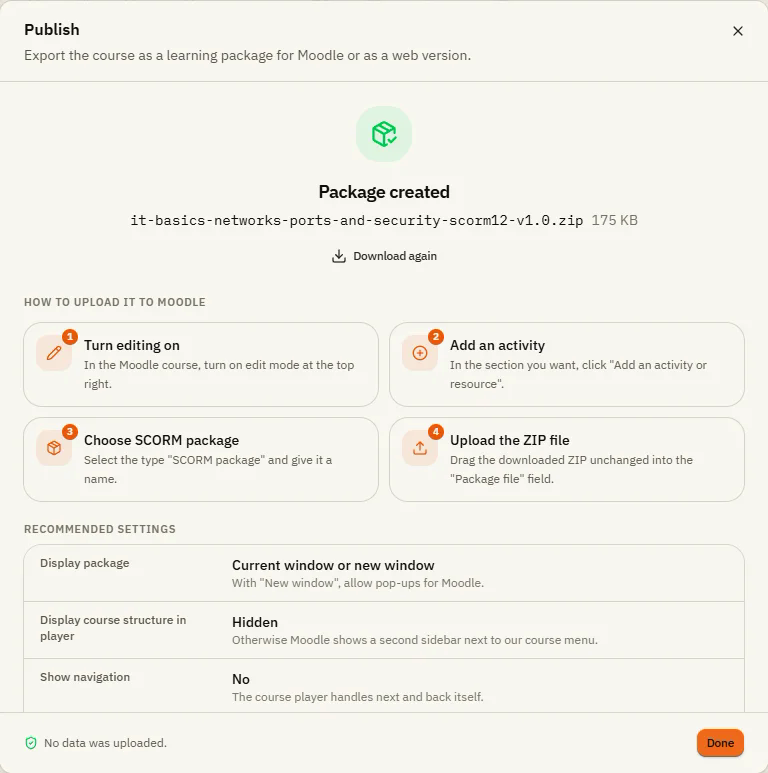
Upload to Moodle in 6 steps
Open your Moodle course and turn on edit mode
Log in to Moodle, open the course and switch on Edit mode at the top right.
Add an activity
In the section where the course should appear, click Add an activity or resource.
Choose SCORM package
In the list, choose SCORM package and click Add.
Enter a name
Under Name, type what learners should see, for example "IT basics". The description is optional.
Upload the ZIP file
Drag the downloaded ZIP file unchanged into the Package file field. Do not unzip it.
Adjust the settings and save
Set the values from the table below. Then click Save and display. Moodle shows the entry page of the activity; click Enter to try the course yourself.
Recommended settings
You find these settings on the same page, further down. Click a section name to open it. Depending on your Moodle version, the names can differ slightly.
| Section | Setting | Recommended | Why |
|---|---|---|---|
| Appearance | Display package | Current window or New window | With "New window", allow pop-ups for Moodle in the browser. |
| Appearance | Width / Height | 100 % | The course player scales the slides by itself. |
| Appearance | Display course structure in player | Hidden | Otherwise Moodle shows a second sidebar next to the course menu. |
| Appearance | Show Navigation | No | The course player handles next and back itself. |
| Appearance | Display course structure on entry page, Display attempt status | No | Learners land directly in the course. |
| Grade | Grading method | Highest grade | With a results slide, the score (0 to 100) is taken over. |
| Grade | Maximum grade | 100 | The score arrives as a percentage. |
| Attempts management | Number of attempts | Unlimited or as needed | Each attempt starts the course again. |
| Attempts management | Force new attempt | No | Learners continue where they left off. |
| Compatibility settings | Auto-continue | No | Not needed: the whole course is one package. |
| Activity completion | Completion conditions | Require status "Passed" or "Completed" | Choose what matches the status you picked when publishing. |
Which status for which course
When publishing, you chose under Scoring how the course reports its status. In Moodle, use the matching completion setting.
| Your course | Completion rule in the Studio | Status in the Studio | In Moodle require |
|---|---|---|---|
| Quiz with passing score | Results slide | Passed / incomplete or Passed / failed | "Passed" |
| Briefing without a test | Slides viewed | Completed / incomplete | "Completed" |
| You decide the moment | By trigger | as you like | matching the status |
What the course reports to Moodle
The score is sent as a percentage (0 to 100), and Moodle uses it directly as the grade. When the window is closed, the player ends the session properly, so learners continue later where they left off. The learner's name from Moodle is available in the course as %Learner.Name%.
For administrators, the exact SCORM fields:
| Data | SCORM 1.2 | SCORM 2004 |
|---|---|---|
| Status | cmi.core.lesson_status | cmi.completion_status and cmi.success_status |
| Score | cmi.core.score.raw/min/max | cmi.score.raw/min/max/scaled |
| Bookmark | cmi.core.lesson_location (255 characters) | cmi.location (1,000 characters) |
| Progress | cmi.suspend_data (4,096 characters) | cmi.suspend_data (64,000 characters) |
| Session time | cmi.core.session_time | cmi.session_time |
| Answers | cmi.interactions.n.* | cmi.interactions.n.* |
| Learner name | cmi.core.student_name | cmi.learner_name |
Update a course
Publish again
In the Studio, publish with the same package identifier and only raise the Version (in the step Details, under Advanced: identifier and version).
Replace the file in Moodle
Open the existing SCORM activity in Moodle, go to its settings and upload the new ZIP into the Package file field. Save.
If something doesn't work
- The status stays "Not attempted" or is not saved: publish as SCORM 1.2. Check that the completion rule can be reached (for example, not more slides required than the course has). With Passed / incomplete, a failed test stays "incomplete" on purpose. Always start the course through Moodle, not by opening
index.htmldirectly. - Learners always start from the beginning: set Force new attempt to No. In very large courses the progress can exceed the 4,096 characters of SCORM 1.2; then split the course into several packages.
- The course window does not open: with New window, the browser blocks the pop-up. Allow pop-ups for Moodle or choose Current window.
- "The package is invalid" when uploading: upload the ZIP unchanged. If the file is very large (many videos), ask your Moodle admin about the maximum upload size.
- A second sidebar appears on the left: that is Moodle's course structure. Set Display course structure in player to Hidden and Show Navigation to No.
- Videos don't play right away: some browsers block videos with sound until the learner clicks once. That is normal.