

Slides, scenes and layouts
A course is made of scenes and slides. A scene is a chapter, for example "Introduction" or "Final test". Every scene holds slides, and a slide is one screen your learners see. This page explains:
- Slide list and story view: where you add, sort and connect slides.
- Slide settings: how long a slide plays and when the course moves on.
- Layouts and slide masters: a logo, header or background once for many slides.
- Slide size and background.
Set up a chapter in 4 steps
Create a scene
Click New scene on the Slides tab (or the folder icon above the slide list). You get a new chapter with one slide. Rename it with the menu next to the scene name, for example to "Chapter 1".
Add slides
Click New slide. The slide appears after the one you have open. For a slide that is already arranged, click the arrow on Layout on the Home tab and pick, for example, Title and content.
Sort them
Drag slides in the slide list to change the order. You can drop a slide into another scene, too.
Check the flow
Click Story view to see all scenes side by side, with arrows showing where each slide leads.
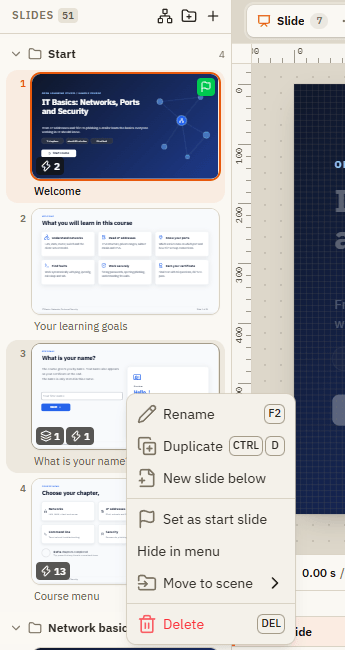
Slide list
| Element | What it does |
|---|---|
| Scene heading | Click the arrow to collapse or expand the scene. The menu next to it renames, moves or deletes the scene. |
| Slide | Click to open. Drag to move. A flag badge marks the start slide; further badges show layers and triggers. |
| Rename | Gives the slide a name. Shortcut F2. |
| Duplicate | Copies the slide with everything on it. Shortcut CtrlD. |
| New slide below | Inserts an empty slide right after this one. |
| Set as start slide | The course starts here instead of on the first slide. |
| Hide in menu | Learners won't see this slide in the player's slide menu. Useful for feedback or branch slides. |
| Move to scene | Moves the slide into another chapter. |
| Delete | Removes the slide. Shortcut Del. You can undo it. |
Slides tab
| Element | What it does |
|---|---|
| New slide | Inserts an empty slide after the current one. |
| Duplicate | Copies the current slide. |
| Import presentation | Brings in slides from a PowerPoint or Impress file (.pptx, .odp). They are inserted after the current slide. |
| Delete | Deletes the current slide. |
| New scene | Creates a new chapter with one slide. |
| Story view | All scenes and branches at a glance. |
| Question, Question banks, Import | Quiz tools, see Questions and results. |
| Advance | By learners: the course waits until learners click Next. Automatically: it moves on when the slide's time is over. |
| When revisited | Reset starts the slide fresh when learners come back. Resume continues where they left. |
| Hide in menu | Same as in the right-click menu. |
| Start slide | Makes the current slide the start slide. |
Story view
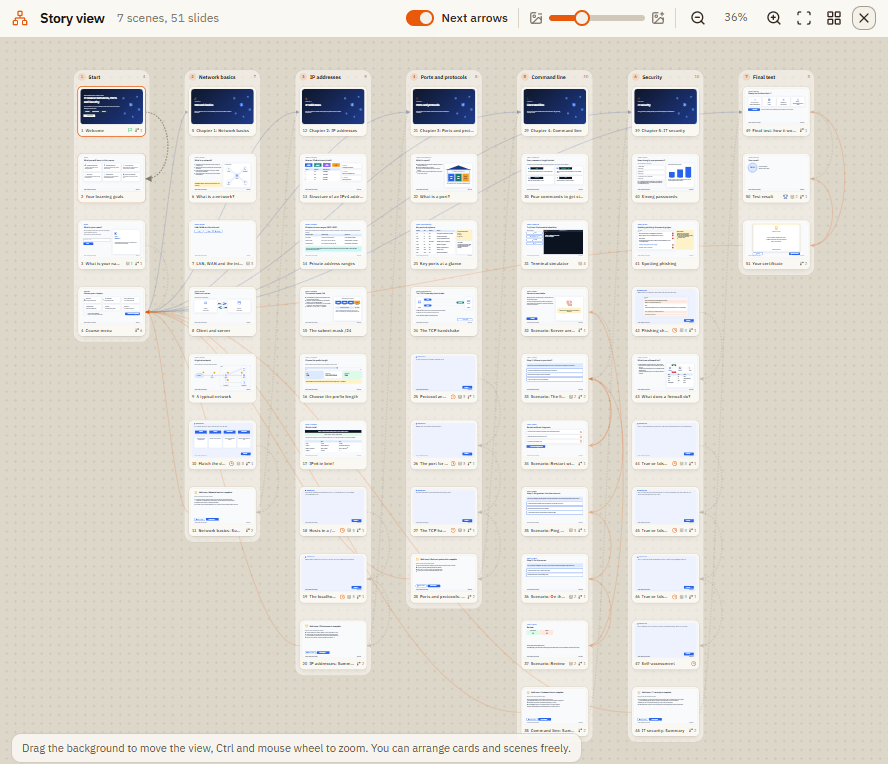
The story view shows each scene as a column of cards, with arrows between them. You see at once where a button leads and whether a slide is never reached.
| Element | What it does |
|---|---|
| Next arrows | Shows or hides the arrows for the normal "next slide" order. The other arrows are jumps made by triggers. |
| Card size slider | Makes the slide cards smaller or larger. |
| Zoom buttons | Zoom in and out. Hold Ctrl and turn the mouse wheel to zoom, drag the background to move around. |
| Fit all | Shows the whole course. |
| Reset arrangement | Puts all cards back in order by scene. |
| Card | Drag it to arrange the view as you like. Double-click to open the slide. |
| Close (X) | Back to the normal slide view. |
Slide settings
Click an empty spot next to the slide so nothing is selected. The Format tab on the right now shows the slide's own settings.
| Setting | What it does |
|---|---|
| Title | The slide's name in the slide list and in the player menu. |
| Background | None, a color, a gradient or a picture for this slide. |
| Hide in menu | Keeps the slide out of the player's menu. |
| Duration | How long the slide plays, in seconds. Quick picks: 5 s, 10 s, 30 s. |
| Next | Automatically or By learners, as described above. |
| Revisited | Resume or Reset, as described above. |
| Audio | A narration or background sound for this slide. |
| Transition | How the slide appears: None, Fade, Dissolve, Push, Cover or Zoom, with duration (Fast, Normal, Slow). |
| Player on this slide | Shows or hides player buttons for this slide only. Example: hide Back / Next until a task is solved. |
| Master and layout | Which slide master and layout this slide uses (see below). |
| Notes | Speaker notes or hints. The player can show them to learners as a transcript. |
Layouts and slide masters
A layout is a ready-made arrangement of placeholders. The built-in ones are Blank, Title slide, Title and content, Two columns, Image and text and Section.
A slide master goes further: you design a logo, a header band, a background or a slide number once, and it appears behind every slide that uses this master. Each master can have several layouts.
Open the master view
Click Design Edit master. The slide list now shows your masters and their layouts. If there is none yet, click Create new master.
Design the master
Insert a logo, a header or a slide number from the ribbon, as on a normal slide. For the slide number, write %Project.SlideNumber% into a text box.
Add layouts
Click New layout for different kinds of slides, for example "Content" and "Section". Each layout can have its own background and objects.
Go back and apply
Click Close master. Select a slide and choose a layout under Design Layout. Or in the master view use Apply to current slide or Apply to all content slides.
Slide size and background
| Element on the Design tab | What it does |
|---|---|
| Size (for example Size 16:9) | Widescreen 16:9, Widescreen 16:10, Standard 4:3, Square 1:1, Portrait 9:16 or Custom with width and height. Scale content proportionally resizes what is already on your slides. |
| Background buttons | No background, a color, a gradient or an image (with Fill or fit). |
| Apply to all | Uses this background on every slide. |
A slide without its own background shows the background of its master layout.
If something doesn't work
| Problem | What to do |
|---|---|
| The course starts on the wrong slide | Right-click the slide you want and choose Set as start slide. |
| The course jumps to the next slide on its own | The slide is set to Next: Automatically. Switch to By learners. |
| A slide is missing in the player menu | It is set to Hide in menu. Right-click it and switch that off. |
| My logo from the master doesn't show | The slide uses another master, or No master. Check Master and layout in the slide's Format tab. |
| I can't move the logo on a slide | Master objects can only be changed in the master view. Open Design Edit master. |