

Versions and backup
Your courses live only in this browser on this computer. There is no account and no cloud. That is good for your privacy, but it also means: if the browser data is deleted, your courses are gone. Two tools keep them safe.
- Version history: restore points inside a course. Go back to an earlier state if something went wrong.
- Backups: files on your computer. A single course as
.olsx, or all courses at once as a workbench backup (.olsw). The workbench is simply the Studio's name for all courses in this browser.
Back up everything in 3 steps
Open My courses
Click the arrow at the top left of the editor (Back to course overview), or open My courses in the top menu.
Open the Workbench menu
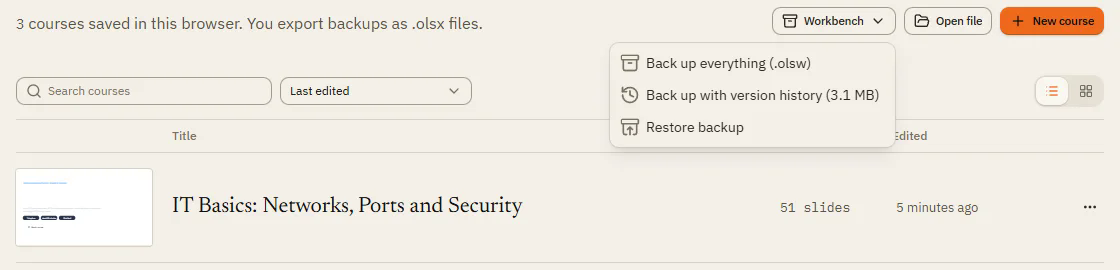
Click Workbench and choose Back up everything (.olsw). With Back up with version history, the versions of all courses go into the file too.
Keep the file safe
The browser downloads the file. Copy it to a safe place, for example a USB stick or your school's network drive.
Version history
Open View Version history. You also find Version history in the menu of a course card on My courses.
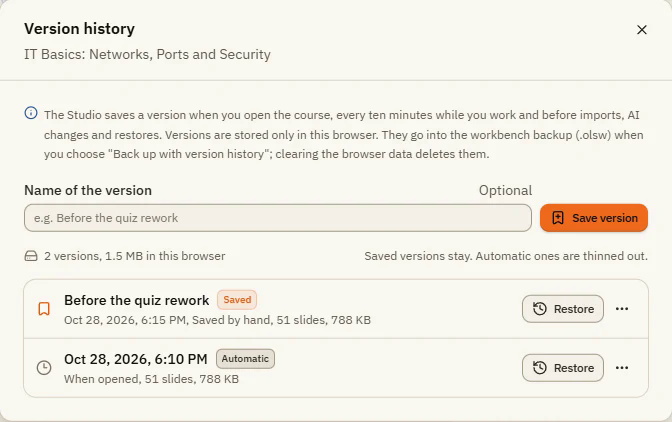
The Studio saves a version by itself:
- when you open the course,
- every ten minutes while you work,
- before imports, AI changes and restores.
| Element | What it does |
|---|---|
| Name of the version | Optional. Give the version a name you will recognize, for example "Before the quiz rework". |
| Save version | Saves the current state right now. Such versions are marked Saved and are kept. |
| Automatic | Marks versions the Studio made by itself. Below each version you see why (for example When opened), the number of slides and the size. |
| Restore | The course goes back to this state. The current state is saved as a version first, and you can undo the restore. |
| Menu next to a version | Rename, Restore, Open as copy (opens the version as a separate course; the course itself stays as it is) and Delete. |
Saved versions stay until you delete them. Automatic versions are thinned out: the Studio keeps the last 20, one per day for the last 14 days, within a size limit per course.
Export a single course
On My courses, open the menu of a course card (the three dots) and choose Export:
| Option | What you get |
|---|---|
| As .olsx archive | The course with all images, videos and sounds in one file. Best for passing a course on to a colleague. |
| As JSON file | The course without media. |
| Export as course script (for AI) | The course as a text file (.olscript.json) that you can hand to an AI chat. |
To open such a file again, click Open file on My courses or drop it onto the page.
Restore a backup
Click Workbench Restore backup and choose the .olsw file. You first see what is inside: number of courses, when it was backed up and the list of courses.
| Element | What it does |
|---|---|
| Merge | Courses from the backup are added to the existing ones. If a course already exists, a copy is created. |
| Replace | All courses in this browser (and the whole version history) are deleted and replaced by the backup. Nothing is deleted until the whole backup has been checked. |
| Restore settings | Also takes over the color scheme, sorting and view of the course list and the editor view (grid, rulers, panel sizes). |
| Restore version history | Adds the versions from the backup to the version history of their courses (only if the backup contains versions). |
| Restore / Replace everything | Starts restoring. |
Storage and reminders
At the bottom of My courses you see the Browser storage:
| Element | What it does |
|---|---|
| Used | How much space your courses use in the browser. |
| Protected / Not protected | Protected: the browser keeps your data even when space runs low. Not protected: the browser may delete it when space runs low. |
| Protect data | Asks the browser to protect your data. If the browser says no, back up regularly. |
| Last workbench backup | When you last made a workbench backup. |
When your courses changed since the last backup, the Studio shows Time for a backup. Choose Back up now or Remind me in a week.
If something doesn't work
- My courses are gone: the browser data was deleted, or you are in a private window or another browser. Restore your last
.olswbackup with Restore backup. - "The file is not a workbench backup": you chose a course file (
.olsx). Open it with Open file instead. - "Not protected" stays: some browsers decide by themselves. Back up regularly, then nothing can get lost.
- I restored the wrong version: undo with CtrlZ, or restore the version Before a restore from the version history.
- The backup is too large: a workbench backup can be at most 1.5 GB. Back up big courses one by one as
.olsx.