

Preview and publish
Before learners see your course, you try it out in the preview. When everything works, you publish it: the Studio packs the whole course into one ZIP file that you upload to Moodle or put on a website.
The parts:
- Preview: plays a slide, a scene or the whole course exactly as learners see it.
- Publish window with four steps: Format, Details, Scoring and Check.
- Package created: the download, plus a short guide for Moodle.
A word you will meet here: SCORM is a standard that lets learning platforms such as Moodle play your course and store the results (finished or not, score, where someone stopped). A learning platform is also called LMS (learning management system).
Publish in 5 steps
Open the publish window
Click the orange Publish button at the top right. (The same window opens with Home Export.)
Choose the format
Leave SCORM 1.2 selected if you use Moodle or are not sure. Click Next.
Check the details
The Course title is the name of the package in Moodle. Click Next.
Decide when the course counts as complete
Under Complete when, choose Slides viewed, Results slide or By trigger. Click Next.
Check and publish
Read the notes. Fix anything marked as an error, then click Publish. The ZIP file is created in your browser and downloaded.
Preview
The preview plays the course exactly as learners see it, with the real player.
| Preview | Shortcut | Where |
|---|---|---|
| This slide | F12 | Preview in the top bar |
| This scene | CtrlF12 | Arrow next to Preview |
| Whole project | CtrlShiftF12 | Arrow next to Preview |
| Element in the preview | What it does |
|---|---|
| Slide, Scene, Project | Switches what is played. |
| Restart | Starts the preview from the beginning and resets all variables. |
| Variables | Shows every variable live while you click through, including the built-in ones. Very helpful when a trigger does not behave. |
| Close preview | Back to the editor. |
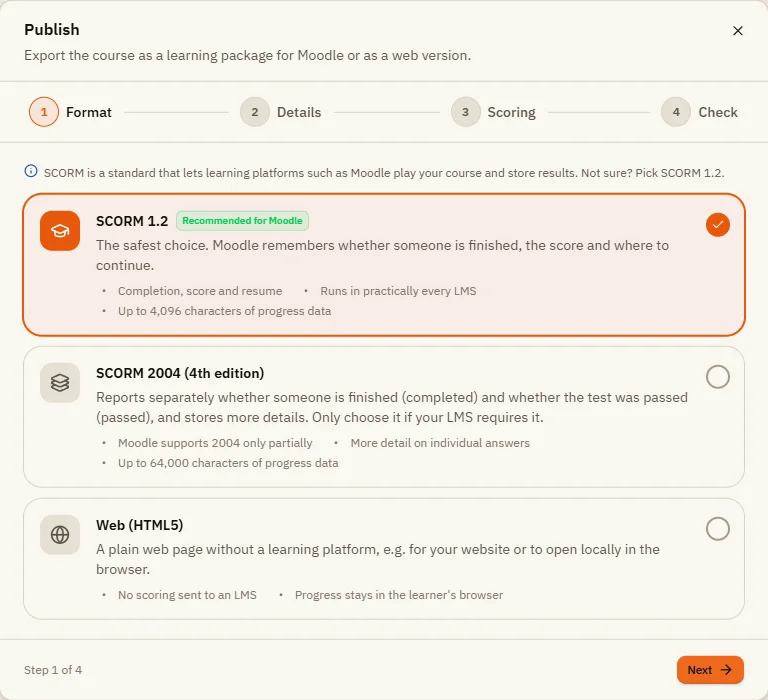
Step 1: Format
| Format | Choose it when |
|---|---|
| SCORM 1.2 (Recommended for Moodle) | You use Moodle or are not sure. The safest choice: Moodle remembers whether someone is finished, the score and where to continue. Runs in practically every LMS. Up to 4,096 characters of progress data. |
| SCORM 2004 (4th edition) | Your LMS requires it. Reports separately whether someone is finished (completed) and whether the test was passed (passed), and stores more detail on single answers. Moodle supports it only partially. Up to 64,000 characters of progress data. |
| Web (HTML5) | You want a plain web page without a learning platform, for your website or to open locally in the browser. No scoring is sent anywhere; progress stays in the learner's browser. |
Step 2: Details
| Element | What it does |
|---|---|
| Course title | Shown in Moodle as the name of the learning package. Required. |
| Description | Optional. A note for you and your team. In Moodle you enter the description yourself when uploading. |
| File name | Shows how the ZIP file will be called, for example it-basics-networks-ports-and-security-scorm12-v1.0.zip. |
| Advanced: Package identifier | A unique name inside the package. Keep it the same when you update the course, so Moodle knows it is the same course. Create identifier from the title fills it in for you. |
| Advanced: Version | Part of the file name. Raise it with each update, for example from 1.0 to 1.1. |
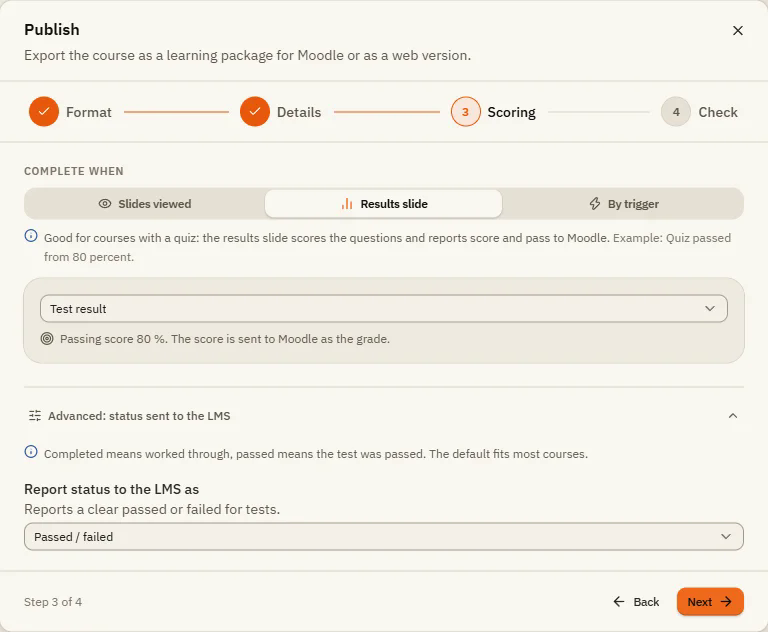
Step 3: Scoring
| Element | What it does |
|---|---|
| Slides viewed | Good for courses without a test: whoever has viewed enough slides is done. Choose All slides must be viewed or At least a number of slides. |
| Results slide | Good for courses with a quiz: the results slide scores the questions and reports score and pass to Moodle. The passing score is sent as the grade. Only available when your course has a results slide ( Insert Results slide). |
| By trigger | You decide the moment, for example with a button "Done". The course counts as completed as soon as a trigger runs the action Complete course. |
| Advanced: Report status to the LMS as | How the status is reported. "Completed" means worked through, "passed" means the test was passed. The default fits most courses. |
The four status options:
| Option | Meaning |
|---|---|
| Passed / incomplete | Not passed stays incomplete, so learners can try again. |
| Passed / failed | Reports a clear passed or failed for tests. |
| Completed / incomplete | For courses without scoring, such as safety briefings. |
| Completed / failed | Completed on success, failed otherwise. |
Step 4: Check
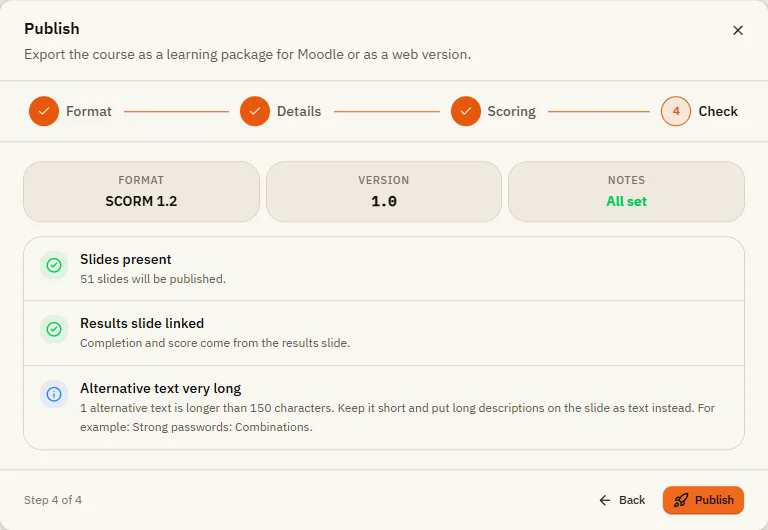
At the top you see Format, Version and Notes. Below, the Studio lists what it checked: whether slides exist, whether the completion rule can be reached, missing or very long alternative texts (descriptions of images for screen readers) and more. If there are errors, the Notes box says Fix errors: you must fix them before you can publish. Warnings and notes are hints you may ignore. When it says All set, click Publish.
Package created
After publishing you see Package created with the file name and size. The ZIP is already downloaded; Download again gets it once more. Below that, the window shows how to upload it to Moodle and the recommended settings. The full guide: SCORM and Moodle.
Use the web export
Unzip the web package and upload the folder to any web server, or open index.html directly in the browser. No data is sent to third parties; progress stays in the learner's browser.
If something doesn't work
- "Results slide" can't be chosen: your course has no results slide yet. Add one with Insert Results slide.
- Publish is not possible: the check shows an error. Read what it says, fix it in the course or go Back to the step, then try again.
- You are publishing an update: keep the same Package identifier as before and only raise the Version.
- "Publishing failed": reload the page and try again. Your course is saved in the browser and stays as it is.
- A JavaScript trigger does nothing in the preview: that is intended. It only runs in the published package.