

Layers
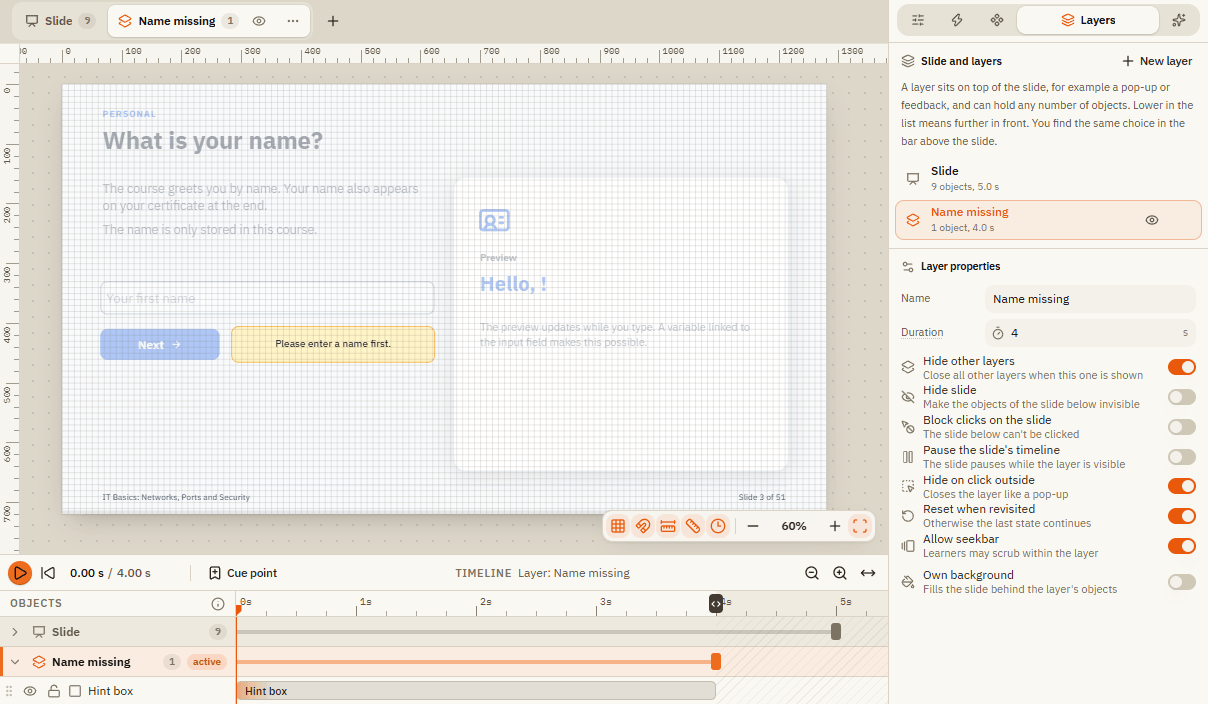
A layer is an extra sheet that lies on top of a slide. It can hold any objects you like. Layers are perfect for things that should appear only when needed: a pop-up with details, a hint, the feedback "Correct!" or "Try again". The slide itself is the bottom layer and is called Slide in the editor. You work with layers in three places:
- The bar above the slide: switch between the slide and its layers, create new ones.
- The Layers tab on the right: the list of layers and the Layer properties.
- Triggers: they show and hide layers while the course runs.
Create a pop-up in 4 steps
Create a layer
Click the plus in the bar above the slide (or New layer in the Layers tab). The new layer is selected. Everything you insert now goes onto this layer.
Name it and design it
Double-click the layer's name and call it something you will recognize, for example "Details". Add a background shape, some text and a close button.
Open it with a button
Go back to Slide in the bar above. Select the button that should open the pop-up. In the Triggers tab click New trigger and pick the template Button shows layer under Quick start. Choose your layer.
Close it again
Switch to your layer, select the close button and add a trigger with the template Close layer. Test it with Preview.
Bar above the slide
| Element | What it does |
|---|---|
| Slide | Switches back to the slide itself (the bottom layer). The number shows how many objects it has. |
| Layer tabs | Click a layer to edit it. The number shows its objects. |
| Eye | Hides the layer in the editor only, so it doesn't get in your way. Learners are not affected. |
| Three dots | The layer's menu: rename, duplicate, delete. |
| Plus | Creates a new layer. |
Layers tab
The Layers tab on the right lists Slide and layers. Lower in the list means further in front. Click an entry to edit it. When the slide itself is selected, its duration, background and audio are in the Format tab; Slide properties takes you there.
Layer properties
Select a layer to see its Layer properties.
| Setting | What it does |
|---|---|
| Name | The name you pick in triggers. |
| Duration | Length of the layer's own timeline, in seconds. |
| Hide other layers | Closes all other layers when this one appears. On by default. |
| Hide slide | Makes the objects of the slide below invisible while the layer is open. |
| Block clicks on the slide | Learners can't click anything on the slide below while the layer is open. |
| Pause the slide's timeline | The slide stops playing while the layer is visible. Useful for pop-ups during a video or animation. |
| Hide on click outside | Closes the layer when learners click next to it, like a typical pop-up. |
| Reset when revisited | The layer starts fresh every time it opens. Off: it continues where it was. |
| Allow seekbar | Learners may scrub within the layer's timeline. |
| Own background | Fills the slide behind the layer's objects with its own color or picture. |
Move objects between layers
| What you want | How |
|---|---|
| Move an object to another layer | Right-click it and choose Move to layer. |
| Move an object to a brand new layer | Right-click it, Move to layer, New layer. |
| Move with the mouse | In the timeline, drag the object's row onto another layer. |
Feedback layers of questions
Question slides create their feedback layers by themselves: Correct, Incorrect and Try again. They are normal layers you can redesign freely. If you broke one, Repair feedback layers in the Question tab restores the missing parts. See Questions and results.
If something doesn't work
| Problem | What to do |
|---|---|
| My layer never appears | Check the trigger on the button: action Show layer with the right layer. Test with Preview. |
| I inserted objects on the wrong layer | Look at the bar above the slide to see which layer is active. Right-click the objects and use Move to layer. |
| The layer covers my slide in the editor | Click the eye next to the layer in the bar above the slide. It is hidden in the editor only. |
| Learners can still click buttons behind the pop-up | Switch on Block clicks on the slide. |
| The pop-up closes when learners click somewhere | Hide on click outside is on. Switch it off if learners should close it with your button only. |