

Design and theme
The design (also called theme) gives your whole course a consistent look: the same colors, fonts and rounded corners on every slide. Change it once and every slide follows. This page covers:
- The Design window: templates, colors, fonts and corner radius.
- Replacing fonts in the whole course.
- The player: the frame around your slides with menu, buttons and progress.
- Course properties: title, author and language.
Give your course a new look in 3 steps
Open the design
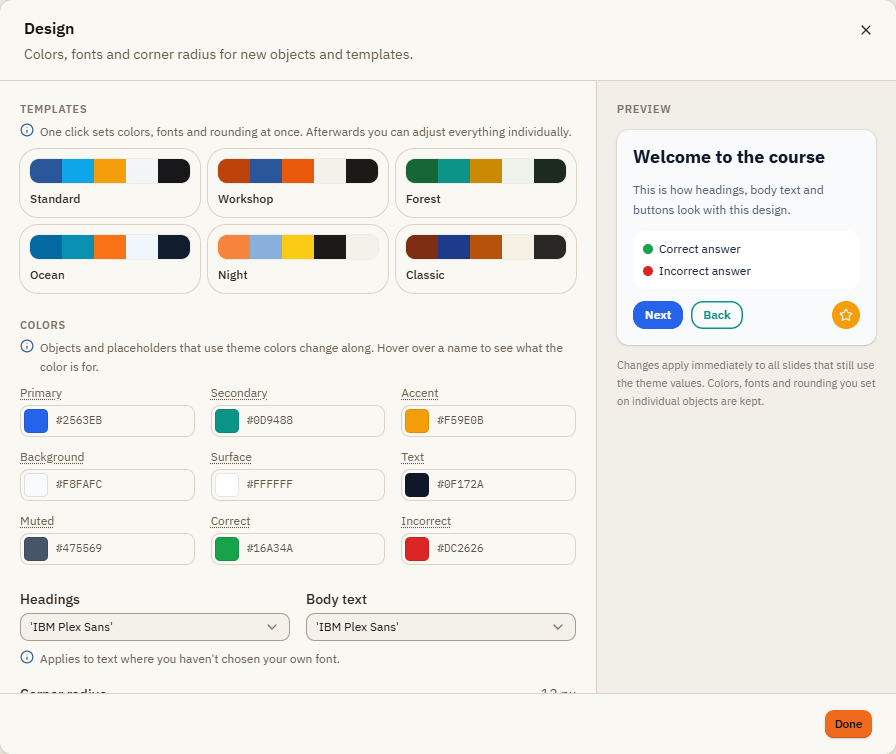
Click Design Design. The Design window opens with a preview on the right.
Pick a template
Under Templates, click one of Standard, Workshop, Forest, Ocean, Night or Classic. Colors, fonts and rounding change at once.
Adjust and close
Change single colors or fonts if you like. The preview shows headings, text, buttons and answer feedback. Click Done.
The Design window
| Element | What it does |
|---|---|
| Templates | One click sets colors, fonts and rounding at once. Afterwards you can adjust everything. |
| Primary | Main color, for example for buttons like "Next". |
| Secondary | Second color, for example for "Back" or borders. |
| Accent | For highlights such as icons and markers. |
| Background | Background of the slides. |
| Surface | Surfaces and tiles on the slide. |
| Text | Normal text color. |
| Muted | Softer tones for hints and subtitles. |
| Correct and Incorrect | Colors of the feedback for right and wrong answers. |
| Headings and Body text | The two fonts of the course. They apply to all text where you haven't chosen your own font. |
| Corner radius | How round buttons, tiles and shapes are. 0 is square. |
| Preview | Shows your choice live. |
Replace a font everywhere
Home Fonts replaces one font with another in the whole course, for example after you changed your house font. Your own fonts (WOFF, WOFF2, TTF, OTF) must be uploaded to the media library first.
The player
The player is the frame learners see around your slides: the menu on the side, the buttons at the bottom, the progress. Open its settings with Home Player or View Player.
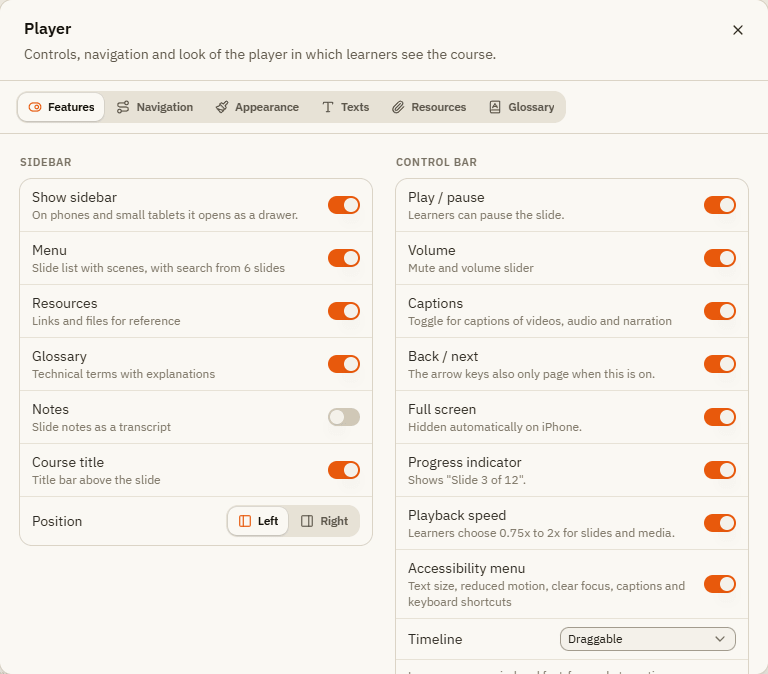
Features
| Element | What it does |
|---|---|
| Show sidebar | The side panel with menu, resources and glossary. On phones it opens as a drawer. Position: Left or Right. |
| Menu | The list of slides, sorted by scene. From 6 slides on it has a search. |
| Resources | Links and files for reference. |
| Glossary | Technical terms with explanations. |
| Notes | Slide notes as a transcript. |
| Course title | Title bar above the slide. |
| Play / pause | Learners can pause the slide. |
| Volume | Mute and volume slider. |
| Captions | Switch for the captions of videos, audio and narration. |
| Back / next | The navigation buttons. The arrow keys only page when this is on. |
| Full screen | Hidden automatically on iPhone. |
| Progress indicator | Shows "Slide 3 of 12". |
| Playback speed | Learners choose 0.75x to 2x. |
| Accessibility menu | Text size, reduced motion, clear focus, captions and keyboard shortcuts. |
| Submit button in the control bar | For freeform questions without their own submit button on the slide. |
| Timeline | The slide's progress bar: Hidden, Display only, Draggable or Draggable after the slide is complete. |
Other tabs
| Tab | What you set there |
|---|---|
| Navigation | Which slides learners can reach in the menu: Free (all, any time), Restricted (visited slides and the next one) or Locked (only through the course's own buttons). Resume on restart: Ask, Always resume or Never resume. |
| Appearance | Scaling (Fit to window or Fixed size), Color scheme (Light or Dark), Accent color and a Logo at the top of the sidebar. |
| Texts | Every text of the player, for example for another language or your own tone. Empty fields show the default. |
| Resources | Links and files (PDFs from the media library) that learners can open in the sidebar any time. |
| Glossary | Terms and definitions learners can look up. |
Single slides can override these settings under Player on this slide in the slide's Format tab, for example to hide Next until a task is solved. Learners can also use the player with the keyboard: Space, the arrow keys, C, M, F and ?.
Course properties
View Course opens the basic details of your course.
| Element | What it does |
|---|---|
| Title | Shown in the player and as the name of the course package in Moodle. |
| Description | An internal note for you and your team. Learners don't see it. |
| Author or organization | Optional. |
| Language | The language of your course texts. Helps screen readers and controls hyphenation and date format. It does not translate anything. |
| Allow JavaScript | Only needed for triggers with "Run JavaScript". See Triggers and variables. |
If something doesn't work
| Problem | What to do |
|---|---|
| A design change doesn't affect some objects | Their colors or fonts were set by hand. Right-click them and choose Reset to design. |
| My own font is missing in the list | Upload the font file to the media library first. |
| Learners can't jump around in the menu | Navigation is set to Restricted or Locked. Choose Free. |
| The menu or glossary doesn't show in the player | Check the switches in the Features tab, including Show sidebar. |
| The course title in Moodle is wrong | Change Title in the course properties and publish again. |
Timeline, states and animation
Decide when objects appear, give objects different looks with states, and add entrance, exit, emphasis and motion path animations.
Triggers and variables
Make slides react - events, actions and conditions, variables for text, numbers and true/false, and where triggers live.