

Connect your AI app
Before an AI app can work on your course, it has to know where the Studio is. You add the Studio's MCP address to your AI app once, like saving a contact. After that, every time you want help you only start a connection in the Studio and paste a sentence into the chat.
- Once: add the MCP address to your AI app (this page, per app).
- Every time: click Start connection in the Studio and paste the sentence with the code into your chat.
- Works with: Claude (claude.ai and the Claude app), ChatGPT on paid plans, Claude Code, Cursor, VS Code and other apps with MCP connectors.
Find the address
The address always ends in /mcp, for example https://ols.yonn.online/mcp. You don't need to type it: the Studio shows the exact address with a Copy button.
Open the dialog
Open a course and click View Connect AI in the ribbon.
Open the setup
Click Set up the AI app (once). You see the MCP address and a row of apps: Claude, ChatGPT, Claude Code, Cursor, VS Code and Other.
Copy the address and pick your app
Click Copy next to the address, then click your app. The steps for it appear right below.
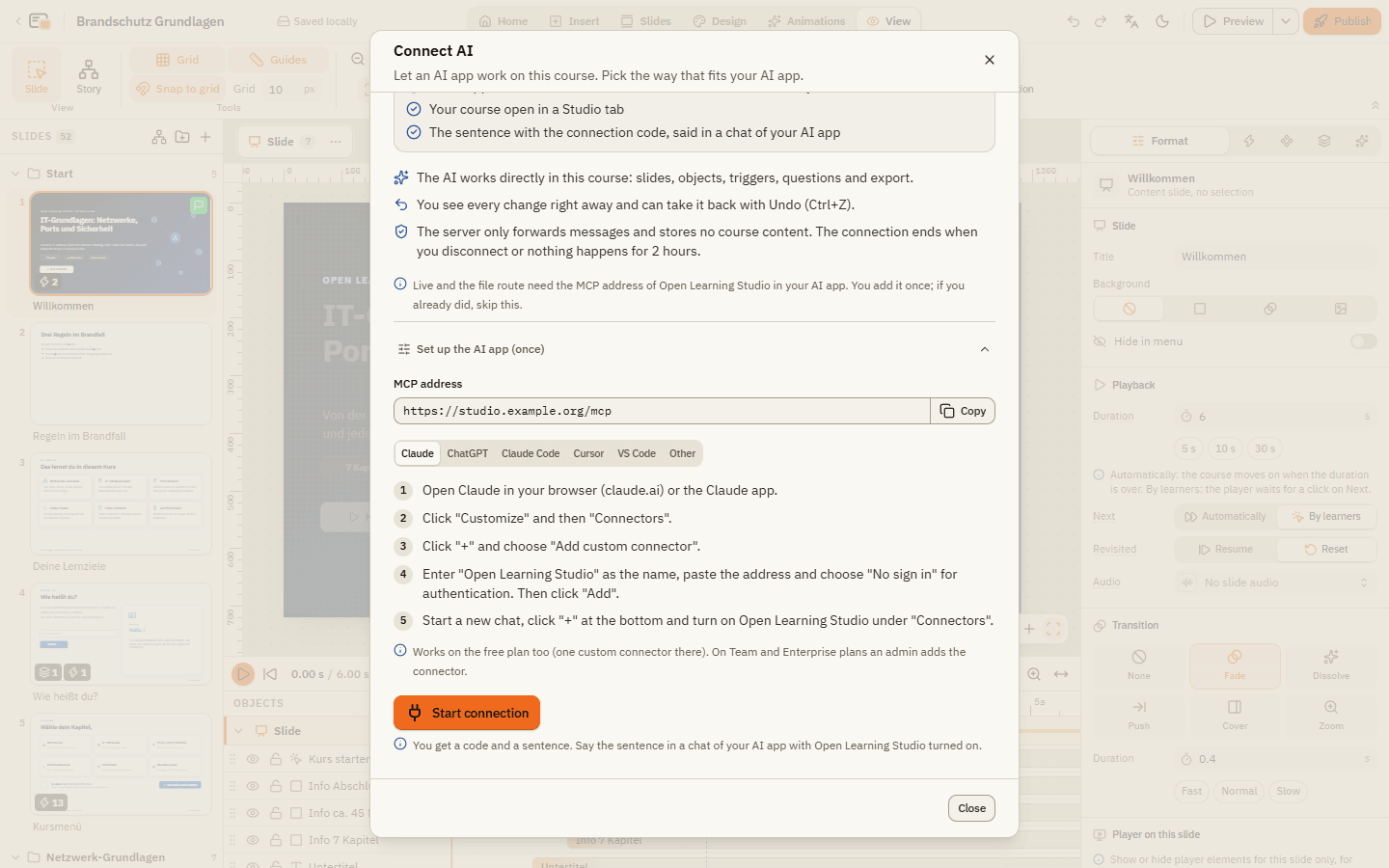
The address contains no password and never changes. Always choose no sign-in (no authentication) when your app asks.
Claude (claude.ai and the Claude app)
Open the connectors
Open Claude in your browser (claude.ai) or the Claude app. Click Customize and then Connectors.
Add a custom connector
Click + and choose Add custom connector.
Fill in the details
Enter Open Learning Studio as the name, paste the address and choose No sign in for authentication. Click Add.
Switch it on in a chat
Start a new chat, click + at the bottom and turn on Open Learning Studio under Connectors.
This works on the free plan too (one custom connector there). On Team and Enterprise plans an admin adds the connector for everyone.
ChatGPT
Open chatgpt.com
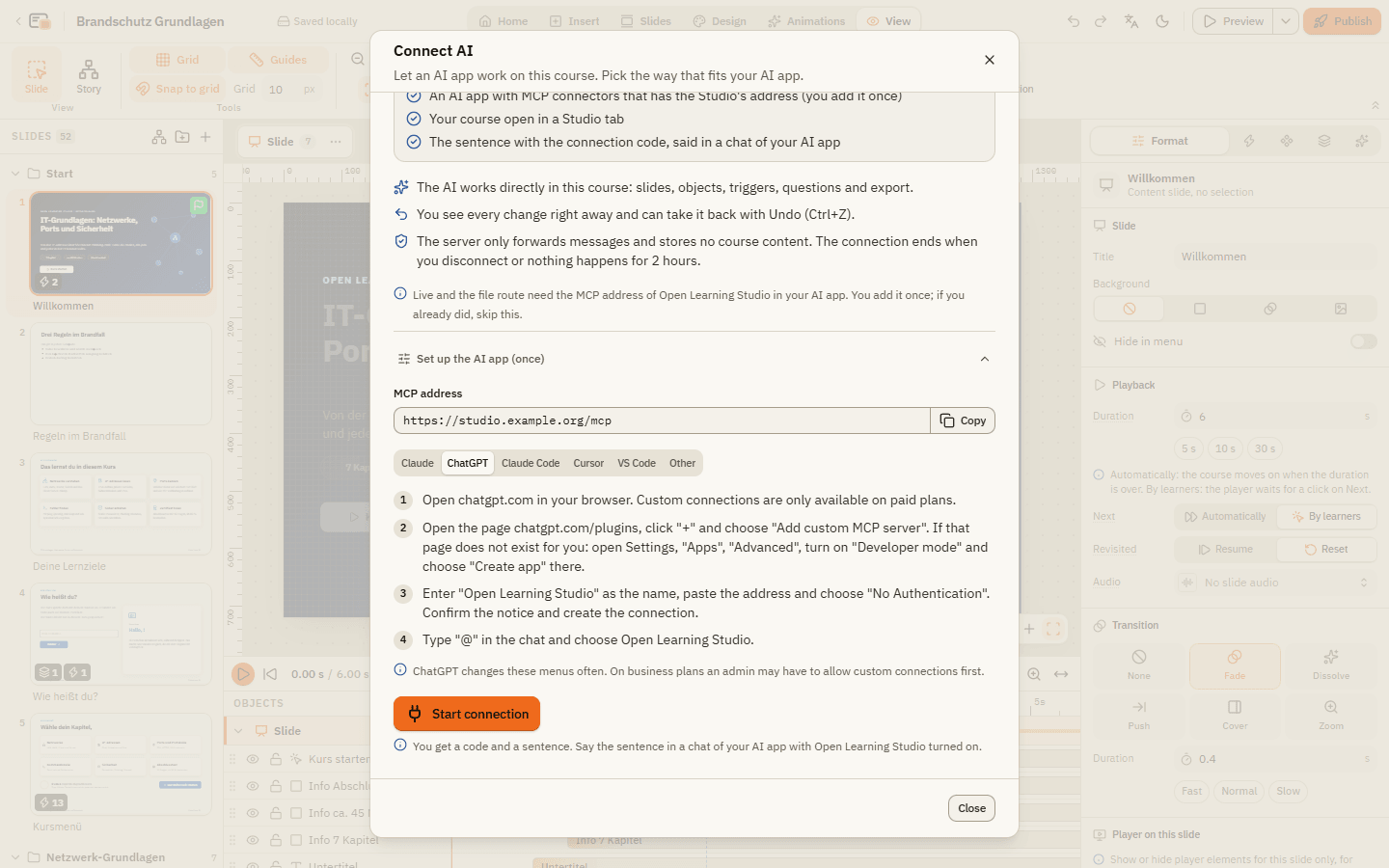
Custom connections only work on paid plans. On business plans an admin may have to allow them first.
Add a custom MCP server
Open the page chatgpt.com/plugins, click + and choose Add custom MCP server. If that page doesn't exist for you: open Settings, Apps, Advanced, turn on Developer mode and choose Create app there.
Fill in the details
Enter Open Learning Studio as the name, paste the address and choose No Authentication. Confirm the notice and create the connection.
Use it in a chat
Type @ in the chat and choose Open Learning Studio.
Other apps
Apps that run on your computer reach any address, also a Studio on your own computer. The dialog has the ready-made entry for each one under its tab; click Copy and paste it.
| App | Where it goes |
|---|---|
| Claude Code | Run the command from the dialog in a terminal, for example claude mcp add --transport http open-learning-studio https://ols.yonn.online/mcp. Start claude; /mcp shows whether the connection is up. |
| Cursor | Paste the entry into .cursor/mcp.json (or open MCP in Cursor's settings). Then ask in the agent chat. |
| VS Code | Paste the entry into .vscode/mcp.json (or run "MCP: Add Server"), click Start above it and confirm the trust prompt. Use Copilot Chat in agent mode. |
| Gemini CLI, Codex CLI, Windsurf, LM Studio | Under Other the dialog shows a ready-made entry for each. |
| Any other app | Look for "MCP", "Connectors", "Tools" or "Integrations". Add an MCP server with an HTTP connection (Streamable HTTP), paste the address and choose no sign-in. |
Connect a chat to your course
The address only tells your app where the Studio is. To let the AI work on the course you have open, connect the chat with a code.
Start the connection
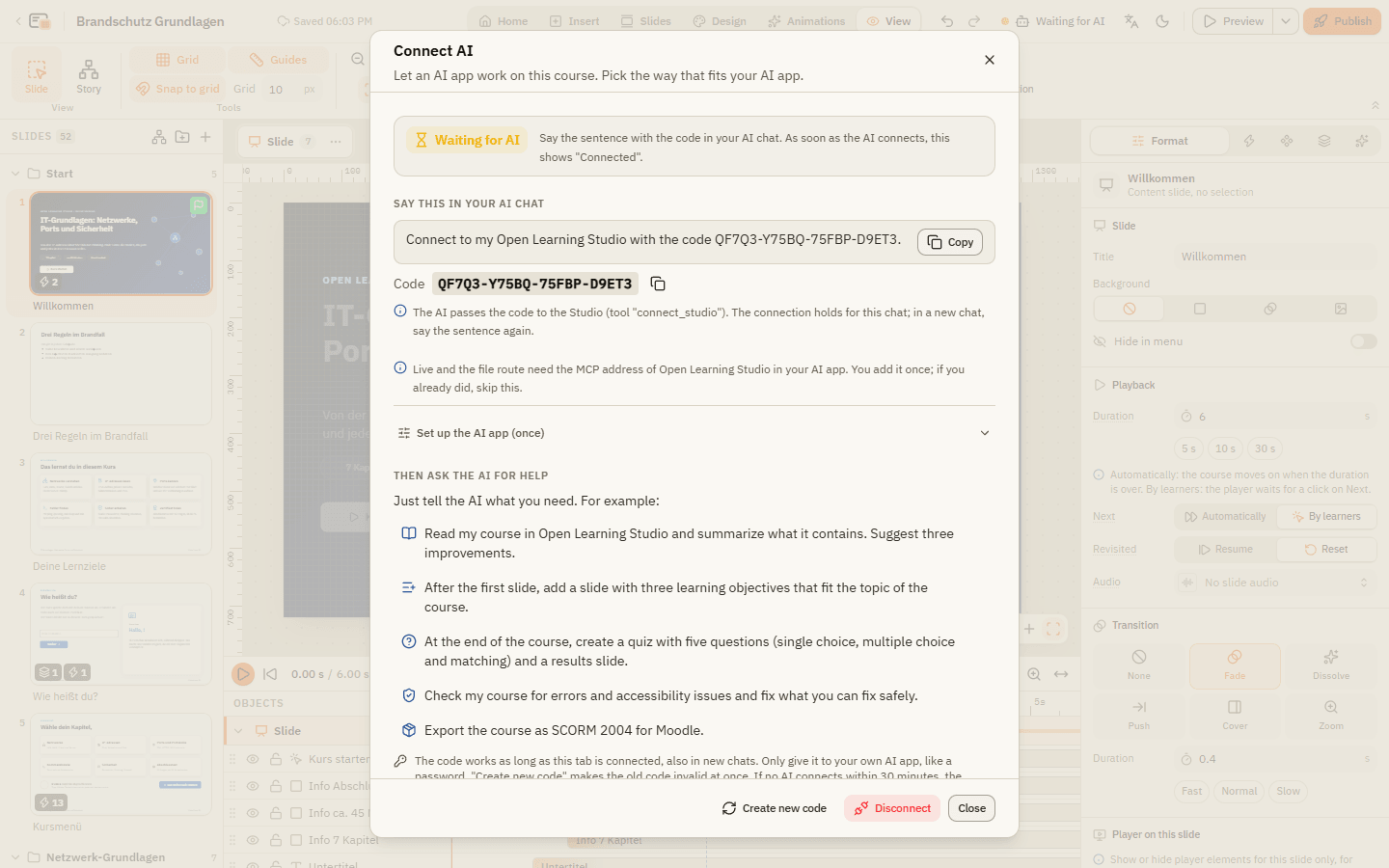
In View Connect AI click Start connection. The status changes to Waiting for AI, and you see a sentence with a code.
Copy the sentence
Click Copy next to the sentence. It looks like this:
Paste it into your AI chat
Paste the sentence into a chat where Open Learning Studio is switched on and send it. The status changes to Connected.
Ask for what you need
From now on the AI works in your open course. Try one of the requests under Then ask the AI for help.
| Element | What it does |
|---|---|
| Start connection | Creates a new code and a sentence for your chat. |
| Copy | Copies the sentence. The small copy button next to Code copies only the code. |
| Create new code | Makes a fresh code. The old one stops working at once. |
| Disconnect | Ends the connection. The AI can no longer reach your course. |
| Status | Not connected, Waiting for AI, Connected, AI is working, Connection interrupted (it reconnects by itself), AI disconnected or Disconnected. You also see it in the top bar of the editor. |
The connection holds for this chat. In a new chat, paste the same sentence again; the code stays valid as long as the tab is connected.
Check that it works
Ask your AI app this. If it answers with a short overview of the course format, everything is set up.
For developers: run the server on your own computer
Developers can also run the MCP server locally. It then works on course files in a folder instead of a browser tab. Clone the Studio repository, run bun install and bun run build:runtime, then for example:
claude mcp add open-learning-studio -e OLS_WORKSPACE=/abs/path/to/courses -- bun /abs/path/to/open-learning-player/mcp/server.ts
Courses are stored as <name>.olscript.json and <name>.olsx in that folder; open the .olsx in the Studio with Open file.
If something doesn't work
The dialog says "Claude cannot reach this address". Your Studio has no public internet address. Use Claude Code, Cursor or VS Code, or the course script.
The AI uses the tools, but doesn't change my open course. The chat is not connected yet. Click Start connection and paste the sentence into this chat. In a new chat, paste it again.
The status shows "Disconnected". You disconnected, the tab was closed, or nothing happened for 2 hours. Click Start connection and paste the new sentence.
The AI doesn't use Open Learning Studio at all.
Switch the connector on for this chat (Claude: + and Connectors; ChatGPT: type @). Then write "Use Open Learning Studio" at the start of your request.
More fixes: Troubleshooting.