

Media
Media are the files you bring into your course: pictures, videos, sound, captions, fonts and PDFs. They are all collected in the course's media library. They stay in your browser and are packed into the course file when you publish. This page explains:
- Adding media to a slide.
- The media library: all files of the course in one place.
- Pictures, video and audio: their settings.
- Captions: subtitles for video, audio and narration.
Add a picture in 3 steps
Choose Image
Open the Insert tab and click Image. Your computer's file window opens.
Pick the file
Choose a picture. It is added to the media library and placed on the slide.
Adjust it
Drag it into place and resize it. In the Format tab you set how it fills its frame or crop it.
Which files work
| Kind | Formats | Hint |
|---|---|---|
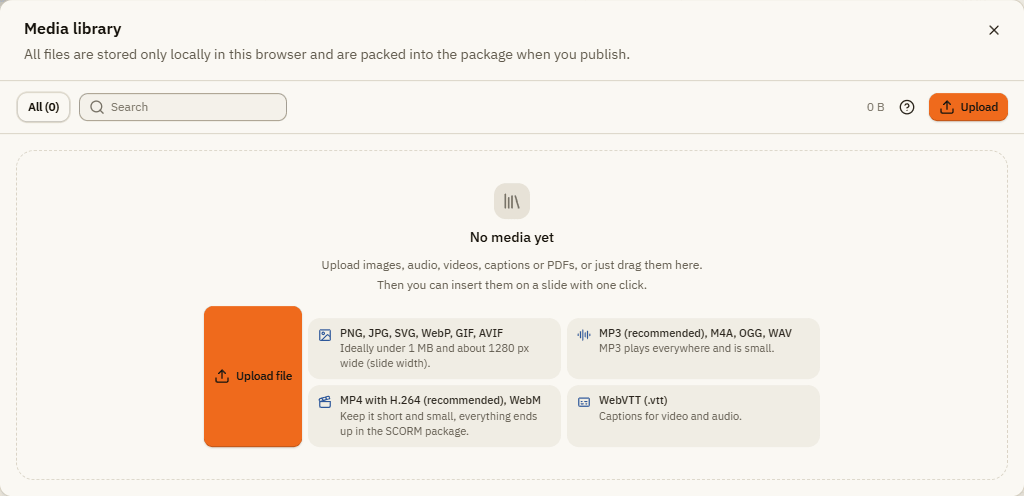
| Pictures | PNG, JPG, SVG, WebP, GIF, AVIF | Ideally under 1 MB and about as wide as the slide (1280 px for 16:9). |
| Video | MP4 with H.264 (recommended), WebM, Ogg | Keep videos short and small. Everything ends up in the course file. |
| Audio | MP3 (recommended), M4A, OGG, WAV | MP3 plays everywhere and is small. |
| Captions | WebVTT (.vtt), at most 2 MB | Subtitles for video, audio and narration. |
| Fonts | WOFF, WOFF2, TTF, OTF | Your own fonts for text. |
| Files | For downloading, for example a handout in the player's resources. |
A single file can be up to 500 MB. But large files make the course load slowly in Moodle, so make them smaller before you upload if you can.
The media library
Open it with Insert Media library or View Media library.
| Element | What it does |
|---|---|
| All and the kind filters | Show all files or only Images, Videos, Audio, Captions, Fonts or Files. |
| Search | Finds files by name. |
| Size | How much space all media of this course take. |
| Question mark | Which files work? Shows the supported formats and sizes. |
| Upload | Adds files from your computer. You can also drag files into the window. |
| Insert on slide | Places the file on the current slide with one click. |
| Used ... times | How often the file is used in the course. |
| File menu | Rename, Download or Delete the file. When you delete a file that is in use, the Studio tells you how often it was used. |
Pictures
Select a picture and open the Format tab.
| Setting | What it does |
|---|---|
| Fit | How the picture fills its frame: Fit (whole picture visible), Fill (frame filled, edges may be cut off) or Stretch (distorted to fit). |
| Crop | Opens the crop window. Drag the frame or its handles; only the bright area stays visible. Choose an Aspect ratio (Free, Match frame, Original). Fit frame adjusts the picture's height so nothing is distorted. Click Apply. |
| Remove crop | Shows the whole picture again. |
| Use aspect ratio | Gives the frame the proportions of the picture. |
| Change picture | Choose another file from the media library. The position stays. |
Video
The Video button on the Insert tab offers Upload video file, Video from link and From media library.
| Setting | What it does |
|---|---|
| Source | File from the media library or URL: a direct https link to a video file (mp4 or webm). |
| Poster image | A picture shown before the video starts. |
| Captions | A WebVTT file with subtitles. |
| Autoplay | Starts the video by itself. Some browsers block autoplay with sound; then the video starts after a click. |
| Controls | Shows play, pause and volume on the video. |
| Loop | Plays the video again and again. |
| Muted | Plays without sound. |
Audio
| Setting | What it does |
|---|---|
| Show icon in the player | Shows a small sound icon learners can click. Off: the audio plays invisibly. |
| Volume, Autoplay, Loop | As the names say. |
| Captions | A WebVTT file with the spoken text. |
Every slide can also have its own narration: open the slide's Format tab and choose a file under Audio.
Captions
Captions are the subtitles that run along with a video or narration. They help learners who can't hear the sound or are in a quiet place.
Open the captions editor
Go to the slide with the video or audio and click Insert Captions. Under Media you choose the video, the audio or the Slide narration.
Set cues
Start playback. At the moment a sentence begins, click Set cue at current position and type the text. Adjust Start and End with the buttons next to each entry.
Fine-tune
Shift all by moves all captions Earlier or Later by some seconds. Import .vtt and Export .vtt exchange caption files with other programs.
Save
Click Save. The captions are stored as a .vtt file in the media library.
If something doesn't work
| Problem | What to do |
|---|---|
| A file is not imported | The format is not supported, or the file is larger than 500 MB. Check the table above. |
| The video does not start by itself | The browser blocks autoplay with sound. Switch on Muted, or let learners start it with a click. |
| A video from a link does not play | The link must point directly to a video file (ending in .mp4 or .webm) and start with https. |
| Captions shows "No video or audio on this slide" | Insert a video or audio object first, or choose slide audio in the slide's Format tab. |
| The course loads slowly in Moodle | The media are too large. Make pictures smaller and shorten videos. |