

What the AI can do
Once your AI app is connected, it can do almost everything you can do in the editor. You never have to click anything for it: you write what you want, and the AI picks the right tools of the Studio by itself. You keep control: every change shows up right away and can be undone.
- Read and explain: summarize a course, find weak spots, suggest improvements.
- Build: slides, scenes, texts, shapes, buttons, layers, triggers, variables, quizzes and results slides.
- Tidy up: align and distribute objects, draw arrows between them, check the layout.
- Check and publish: find errors and accessibility problems, export as SCORM for Moodle.
What you can ask for
| Area | What the AI can do for you |
|---|---|
| Read | Read the whole course, give you an outline of scenes and slides, find objects by their text. |
| Slides and scenes | Add, change, move, copy and delete slides and scenes. |
| Objects | Add text, shapes, buttons, images, tables, charts, lines and more; change their look; group, copy and arrange them neatly without you giving any positions. |
| Interaction | Add triggers ("when the learner clicks, show the layer"), variables, states and layers such as pop-ups. |
| Quizzes | Add question slides of every question type, question banks and results slides with a passing score. |
| Look | Change the theme (colors, fonts), the player settings, the glossary and the course logo. |
| Text | Find and replace a word across the whole course. |
| Look at a slide | Draw a slide as a picture to check its own work, for example whether text fits or objects overlap. |
| Check | Run the same check as the publish dialog, including accessibility, and fix what it finds. |
| Media | Add images, audio, video, captions and fonts to the media library, rename and remove them. |
| Imports | Bring in PowerPoint and Impress presentations and questions from GIFT (Moodle) or CSV. |
| Translation | Export the texts for translation (XLIFF) and import the translation, in place or as a new course. |
| Versions | Save a version, list versions and restore one. |
| Export | Create a SCORM 1.2 or SCORM 2004 package, a web package or a Studio file (.olsx). Finished files appear in the dialog under Files created by the AI with a Download button. |
Good requests to copy: Prompts that work.
Stay in control
You find these switches in View Connect AI as soon as a connection is running.
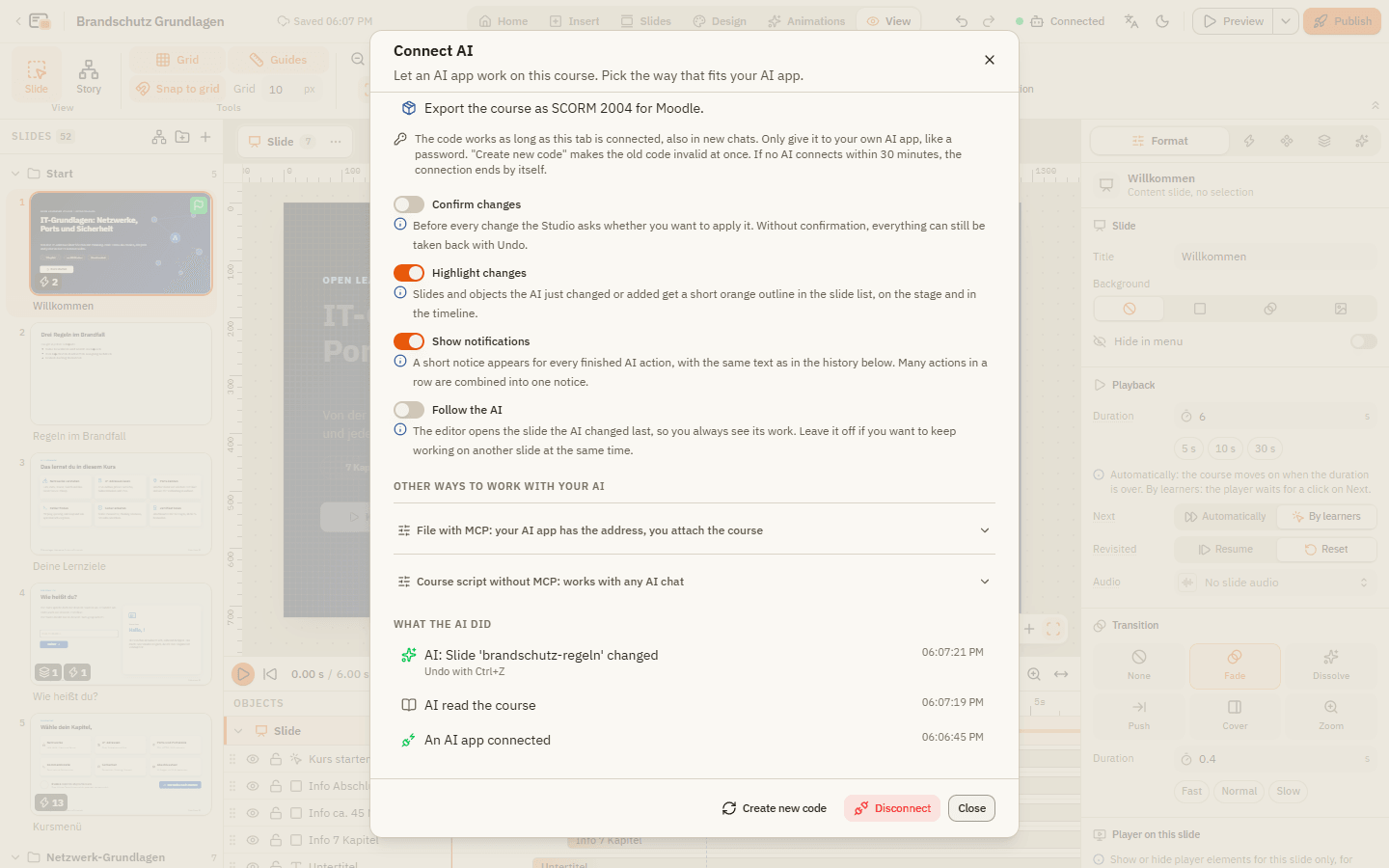
| Element | What it does |
|---|---|
| Confirm changes | Before every change the Studio asks Apply the AI's change?. You click Apply or Reject. Off: changes go in right away, and you can still undo each one. |
| Highlight changes | Slides and objects the AI just changed or added get a short orange outline in the slide list, on the stage and in the timeline. |
| Show notifications | A short notice appears for every finished AI action. Many actions in a row are combined into one notice. |
| Follow the AI | The editor jumps to the slide the AI changed last. Leave it off if you want to keep working on another slide at the same time. |
| What the AI did | A list of every AI action with the time, for example "AI read the course". Changes show Undo with Ctrl+Z. Every new connection appears here too. |
What stays safe
- JavaScript: the AI cannot switch on JavaScript triggers. If it wants to change JavaScript code, the Studio always asks you first and shows the code.
- Replacing the whole course, for example with an older version, always needs your confirmation.
- New outside addresses (web objects, videos, links) are listed in What the AI did and, if you confirm changes, in the question too. So you see which other servers the course will load content from.
- Strangers: every new connection appears in What the AI did. If it wasn't your AI app, click Disconnect and start a new connection.
For the curious: MCP tools
Behind the scenes the AI uses the MCP tools of the Studio, small functions with English names such as connect_studio or check_course. You never need to know them. If you are curious, ask your AI app "Which Open Learning Studio tools do you have?"; it lists them with a short description. People who write course scripts by hand find all details in the format reference (see The course script).
The guide you are reading has MCP tools too: with the address https://docs.ols.yonn.online/mcp your AI app can list, read and search these pages (list-pages, get-page, search-pages). How to add it: Working with AI.
If something doesn't work
The AI says it changed something, but I don't see it. Turn on Follow the AI, or look for the slide with the orange outline in the slide list. If Confirm changes is on, a question may be waiting for your answer.
I want to undo everything the AI did. Press CtrlZ once per change, or restore the version "Before an AI change" in View Version history.