

Imports
You don't have to start from scratch. The Studio takes over material you already have: slides from presentations, questions from Moodle or a spreadsheet, translations from a translation agency, and courses saved as files. Before anything changes, you always see a preview.
What you can import:
- Presentations from PowerPoint (
.pptx) and Impress (.odp): as a new course or as extra slides. - Questions from Moodle (GIFT format) or a spreadsheet (CSV).
- Translations as XLIFF, the exchange format of translation agencies and tools.
- Course files:
.olsx,.json, course scripts and workbench backups.
Import a presentation in 4 steps
Open the import
For a new course, drag the .pptx or .odp file onto the page My courses. To add slides to an open course, click Slides Import presentation. They will go after the current slide.
Choose the file
Drag the file into the window or click Choose file. Nothing is saved before you confirm the preview.
Pick the slides
The preview shows every slide with its notes. Choose All, None or single slides. If the presentation has sections, Scenes from sections turns each section into its own scene (a chapter in the course menu).
Read the report and confirm
Not taken over or simplified lists per slide what changed. Click Create course or Insert slides. Inserted slides can be undone with CtrlZ.
| Taken over | Not taken over or simplified |
|---|---|
| Text with font, size, color, bold and italic, bullets and numbering, links | Charts, SmartArt, 3D objects and embedded objects (you get a labeled placeholder) |
| Shapes such as rectangle, circle, arrows, star, speech bubble with fill, line and shadow | Exit, emphasis and motion path animations; click animations play automatically one after another |
| Images with cropping, embedded videos and audio, tables and groups | Freeforms, arrowheads, hatching, radial gradients, 3D effects, glow and reflections |
| Backgrounds, slide masters with layouts, notes, hidden slides | Linked (not embedded) images and media as well as macros |
| Links to other slides and web pages (as click triggers) | |
| Simple entrance animations and slide transitions |
A new course takes the colors and fonts of the presentation as its design. When you insert slides into a course, your course design stays and the slides keep their colors.
Import questions in 4 steps
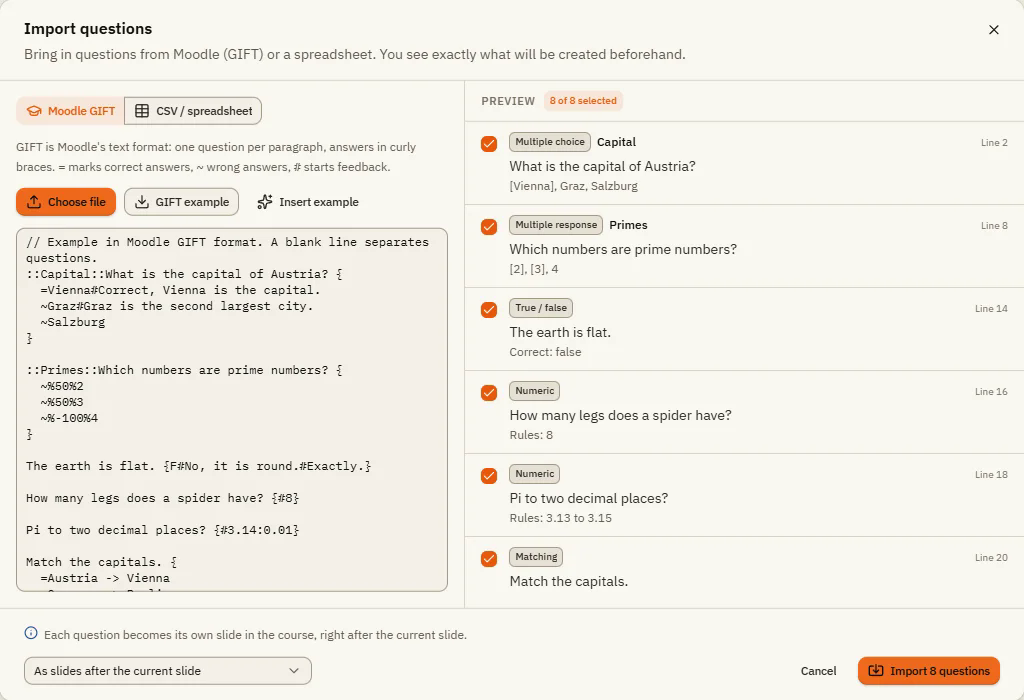
Open the window
Click Slides Import. The window Import questions opens.
Choose the format
Choose Moodle GIFT or CSV / spreadsheet at the top left.
Paste text or choose a file
Paste the text into the box, or click Choose file (up to 2 MB). Want to try it first? Insert example fills in a sample. On the right, under Preview, every recognized question appears with its line number. Untick questions you don't want.
Choose the target and import
At the bottom, choose As slides after the current slide or Into a question bank, then click Import ... questions.
| Element | What it does |
|---|---|
| Moodle GIFT / CSV / spreadsheet | The format of your questions. |
| Choose file | Loads a file instead of pasted text. |
| GIFT example / CSV template | Downloads a sample file you can fill in. |
| Insert example | Puts a sample into the box so you see how it works. |
| Preview | Every recognized question with its type and line number. Errors are listed per line. |
| Target | As slides after the current slide: each question becomes its own slide. Into a question bank: the questions go into a bank (new or existing), from which a results slide can draw. |
The GIFT format is Moodle's text format: one question per paragraph, answers in curly braces. = marks correct answers, ~ wrong ones, # starts feedback. Example:
::Exit::Where do you go when the alarm sounds? {=To the nearest marked exit ~To the elevator ~Back to your desk}
GIFT supports multiple choice, true/false {T}, numbers {#42} or {#40..45}, short answers, matching {=term -> partner}, essays {}, descriptions and $CATEGORY: lines. You can export questions from the Moodle question bank in this format.
The CSV format is a spreadsheet: one row per question with a header row, separated by ;, , or tab. Columns: type, question, answers (separated by |), correct (number of the correct answer, for example 2 or 1|3), feedback correct, feedback incorrect, points, title. Types: mc, mr, tf, short, numeric, matching, essay, description. Tip: start from the CSV template.
Translate a course with XLIFF
XLIFF is the file format translation agencies and tools work with. You export all texts, have them translated and import the result back.
Export the texts
Click View Translate. Under 1. Export texts, choose the Source language and Target language (any language code, for example sv or pt-BR) and click Download XLIFF.
Have it translated
Send the file to your translation agency or open it in your translation tool. Every text has a fixed ID, so the translation lands in the right place even if you change the course in the meantime.
Import the translation
Under 2. Import translation, click Choose XLIFF file. The preview shows changes, unchanged texts, texts without translation, changed source texts and entries not found.
Apply it
Choose Create as new course (recommended: the original stays unchanged) or Replace in this course (can be undone). Optionally tick Set course language to ... and click Create copy or Apply translation.
The file contains slide titles, notes, texts and labels, alternative texts, states, questions with answers and feedback, player labels, glossary and resources. XLIFF files can be up to 20 MB.
Open course files
On My courses, drop a file onto the page or click Open file.
| File | What it is |
|---|---|
.olsx | One course with all its media, the Studio's archive format. |
.json | A project file without media. |
.olscript.json | A course script, the text format for AI apps. |
.pptx, .odp | A presentation that becomes a new course (see above). |
.olsw | A workbench backup with many courses. Restore it via Workbench Restore backup (see Versions and backup). |
If something doesn't work
- "This file cannot be imported": check the file type. Keynote files must be exported as
.pptxfirst; flat.fodpfiles must be saved as.odp. - A question is missing in the preview: look at the error list for its line number. In GIFT, a blank line must separate questions.
- "File too large": question files can be at most 2 MB, XLIFF files 20 MB. Split the file.
- A translation does not appear everywhere: entries listed as "not found" belong to content that was deleted, or the file comes from another course.
- JavaScript triggers stopped working after an import: that is on purpose. Turn on Allow JavaScript again in View Course if you trust the code.